Installing the Scoreboard Software
These are instructions for getting the software installed and running on a standalone computer to provide a functioning scoreboard. If you have already done this, see Setting up the Scoreboard below.
Updating from a previous version
Updating works the same as a new install. If you extract the new version into the same parent folder as the older one (and the old one is at least version 4), CRG will automatically import all data from the old version into the new one. (Note that blank statsbooks are only copied over if they are placed in the base folder of the installation.)
Hardware Requirements
Most Apple or Windows computers that have been manufactured in the last ten years should be able to handle the scoreboard well on a standalone setup. In general, a machine with at least a dual-core 64-bit processor and 2 gigabytes of RAM should be sufficient. Using the scoreboard to provide video overlays or in a networked setup that includes penalty or lineup tracking typically requires more computing power.
Chromebooks that have been modified to run Linux distributions have been used to host the scoreboard but hardware limitations (lack of a suitable display output or low-powered CPUs) may cause issues.
Software Requirements
The scoreboard should be unzipped into a folder on the local machine. The user running the software requires write access to this folder. Do not put the scoreboard in a folder that requires administrator privileges to write to unless you intend to run the software as an administrator.
Web Browser
Google Chrome and Microsoft Edge (as well as their open-source parent Chromium or other browsers derived from it) are recommended for running the software. Some known issues may occur when using Mozilla Firefox or Apple Safari. Microsoft Internet Explorer is not recommended.
Java
Java is required for providing a Java Runtime Environment (JRE) version 8.0 or newer. Installing the latest version is recommended.
Windows and Apple users can install the Java SE Development Kit that is available from Oracle’s Java site.
Linux users likely already have a JDK or JRE from the OpenJDK project installed or available from their distribution. If not, OpenJDK can be obtained from their repositories.
Downloading the Scoreboard
The project is currently hosted on GitHub, and ZIP files can be downloaded from the GitHub Releases Page. It is recommended that you use the version labeled "Latest release" (green box). The "Pre-release" (orange box) versions are currently in development and testing, and are not recommended for sanctioned games or tournaments.
After downloading, you have to extract the archive. Attempting to run from the zip file will not work.
Setting up the Scoreboard
Once everything is installed, use your file manager to navigate to the scoreboard folder and run the scoreboard background script by double-clicking on it.
Windows users: Run scoreboard-Windows.exe to start the script.
Apple users: Run scoreboard.sh to start the script. (If clicking doesn't work, try pressing command+i (or right click on the file and select "Get info"). In the new info dialog in section "open with" select Terminal.app. (If it's not listed, choose other and navigate to /Applications/Utilities/Terminal.app.)
Linux users: Run scoreboard.sh to start the script. If you are unable to start it, you may have to allow script files to be executable as programs (Right-click on the file > Properties > "Allow run as program").
Once it starts successfully, the scoreboard script will open a new window and display a series of status messages. You must keep this script running in order for the scoreboard to function, so do not close the window. You may minimize the window without effect. If there are errors during scoreboard operation, this window may contain output that can be useful for diagnosing tthe problem. So it's worth taking a snapshot.
In your file manager, open start.html with the recommended browser. You may need to right-click on the file and choose the Open With option. The browser will open to localhost:8000 where several options are presented.
Assuming that your scoreboard computer is set up with a monitor/laptop screen as a primary display for the operator, and a separate projector as a second display, right-click on the second link for Main Scoreboard and choose Open link in new window. Drag the new window with the main scoreboard onto the second display, click inside the window, and press the F11 key to make the window full screen. In the first browser window that you opened on the primary display, click on Main Operator Control Panel.
When the control panel displays, it will ask you for an operator name. Enter your name and click Login. This operator name is used to store your personalized settings such as key controls.
Quick Start Guide
These instructions are intended to get you up and running as fast as possible with operating a scoreboard computer that is in the following state:
- The CRG ScoreBoard software is installed.
- The scoreboard script is running.
- The start page is open.
- The computer is connected to a second display.
- The Main Scoreboard page is on the second display, and the Main Operator Control Panel is on the primary display.
- The operator is logged in to the control panel.
For instructions on how to accomplish this, see Installing the Scoreboard Software.
Setting up a game
After logging in, you will be viewing the Controls tab. Click the Start New Game button. If your game is present in the dropdown under Start a prepared game, select it and click the Start Game button below it. You can then continue with the next section.
If your game has not been prepared, select both teams (or Black and White if your teams are not present) and optionally enter the start time. Click the Start Game button below these settings. If you entered a start time the Time To Derby clock will display on the scoreboard and begin counting down.
Next, if your Teams were not present in the selection and you don't want them to be displayed as Black and White, you have to set the team names. In order to do this switch to the Teams panel and fill the League and/or Team fields for each team. (If you also enter a Uniform Color the operator interface will show that while the public display shows the name). Afterwards switch back to the Controls tab.
Starting the Game
Simply click the Start Jam button when the first whistle blows. This will start the jam and period clocks. (Don't worry if Time to Derby hasn't run down, it will automatically be cancelled.)
During the Game
The scoreboard operator has two essential jobs during the game: controlling the clock and updating the score.
Controlling the Clock
Controlling the clock should always be done using the Start Jam, Stop Jam, and Timeout buttons at the top of the page. (Note that the text on these buttons changes depending on the game state. The text above is what they will show at the time you may want to press them.)
- Start Jam: Click this button when the jam timer blows the whistle to start the jam, which should always come after a "five seconds" warning.
- Stop Jam: Click this button during the burst of four whistles that ends the jam, either by the lead jam referee, the jam timer, or (rarely) another referee that ends the jam.
- Timeout: Click this button if a referee or the jam timer blows a burst of four whistles for a timeout.
Updating the Score
To raise or lower the score for a team, click the Score +1 or Score -1 button under the appropriate team.
Correcting Scores and Clocks
Score +1 should always work as described above. If you can't decrease the score with Score -1, go to the SK sheet at the bottom of the screen, click on a cell with a sufficiently large number and in the popup decrease that number. Then close the popup again with the corresponding button.
If you need to adjust the value of a clock, use the +1 and -1 buttons on either side of the clock. This should only be necessary when the jam timer signals you to adjust the period clock during a timeout.
That's all you need for a basic game. For the full workflow including stats generation, see Scoreboard Operation.
Preparing a Game
There are two ways to prepare a game: You can either import a WFTDA statsbook prepared for the game or prepare the data in CRG. You can also combine these methods by starting with a partially prepared statsbook and completing the data in CRG.
For both methods you start in the Data Management (a.k.a. Games / Teams / Rulesets) screen.
Importing a Statsbook
- Click "Show" in the Upload section.
- Select the statsbook file in the "Choose File" dialog or drag & drop it to the area around that button.
- Click "Import Statsbook"
- Wait for the game to show up in the list of games below.
Setting up a game in CRG
- In the "Games" section click "New". This will open the game editor for a new game.
- Fill in the info on the IGRF tab.
- Switch to the Teams tab.
- If one or both teams for the game are already in CRG as stored teams, select them in the dropdowns at the top. Else fill in the team info.
- If you have the skater roster in a table with numbers in column 1 and names in column 2 you can simply paste that into either the new name or new number field and all skaters will be added.
- If there are skaters that are listed but will not participate in the game mark them as "Not Skating" in the "Flags" column.
- (optional) Mark the Captains as such in the "Flags" column.
Scoreboard Operation
The "Controls" tab of the main operator control panel is used for scoreboard control during the game. The other tabs can be used for data entry or other changes to the appearance or function of the scoreboard, but when derby is going on, this screen is where the scoreboard operator spends their time.
Screen Layout
The Controls tab is split into several sections. Top to bottom these are:
The navigation section which is used to navigate to other tabs or screens.

The options section where you can configure operator settings and trigger functions for start/end of a game.

The clock controls that are used to enter what's currently happening in terms of clocks.

The team controls that are used to enter what's currently happening in terms of points and timeouts.

The clock details that display the state of the various clocks and can be used to correct clock values and data on jams, periods, and timeouts.

The Score sheets that display the recorded points data and allow you to edit it.

Basic Workflow
Before the Game (Starting a New Game)
- Set up your hotkeys if you are using them. (Configuring Hotkeys) Best practice is to always define hotkeys for "Start Jam", "Stop Jam/End Timeout/Lineup" (all the same button; the text changes based on the current function), and "Timeout," even if you intend to use the mouse for all other functions.
- Check that the options at the top are set the way you expect them. Adjust them if necessary.
- Be especially aware of "Auto End Jams" as this is not stored per user for technical reasons.
- Select "Start New Game"
- If your game has been prepared (see Preparing a Game) select the Game from the dropdown at the top. Else set up an adhoc game:
- Select Team 1 and Team 2 from the dropdown lists. Team 1 is typically the home team or higher seed. If one or both of the teams are not in the list select "New Team" instead.
- Select the ruleset.
- If you want a "Time to Derby" countdown enter the start time of the game. Note that this will only work properly if the clock on the computer is also set correctly.
- Select the "Start Game" button in the section you are using (prepared game or adhoc game).
- The "Time to Derby" clock will begin running immediately on the main display, if you entered a start time (or one was set for the prepared game).
- Click on the orange "Go To Current Game" button at the top of the screen.
- (optional) Set up team info on the "Teams" tab. (See Team Editor for details.)
- Make sure the scorekeepers are sitting on the correct sides of the scoreboard.
- Before the first jam starts, go through the "During Lineup" steps for the first jam.
(optional) If you want to display the lineup clock for the initial lineup, press the "Lineup" button at the rolling whistle.
During Lineup
- First, always verify the total score with each scorekeeper. Keeping the score accurate is your first priority at this point - verify it after every jam.
- Second, if you are entering jammers, select them with the "Jammer" buttons for each team. (If your crew is using CRG lineup tracking, you should leave this to the LT unless the two of you agreed on you helping with this.)
- When a jammer or pivot is marked as in the box at the end of a jam, they are automatically set for the next jam.
- Skaters that have previously been Jammer/Pivot are highlighted with a dark background in the corresponding selector.
- If you have time, you may also enter the pivots with the "Pivot" buttons. You can also do this after the jam has started. (Or you can skip this step - it's not required, it just makes star passes easier.)
- During the lineup period, keep a finger near the "Timeout" button so you can stop the clock quickly if needed. (If you call for a timeout, don't forget to stop the clock when it is issued!)
- When the jam timer whistles the start of the next jam, start the jam by pressing the "Start Jam" button.
During a Jam
- Be ready to stop the clock at any moment. Keep one hand near your "Stop Jam" hotkey at all times. (You did define a "Stop Jam" hotkey, right?)
- When lead is signaled, press the "Lead" button for the appropriate team.
- If the lead jammer gets reabsorbed by the pack still on their initial trip after being awarded lead status, press the "Remove Trip" button.
- When a jammer finishes their initial trip without being given lead at the same time (i.e. either they have not been given lead at all or you pressed "Remove Trip" after they got stuck in the pack) press the "Add Trip" button.
- Most of the time when a Jammer loses lead or the eligibility to become lead jammer, the scoreboard will mark lost automatically. You'll have to mark it manually, when
- the Jammer takes off their helmet cover without passing the star or
- the Jammer is penalized, your crew is not tracking penalties or lineups via CRG, and you are not marking the penalty using the "Box" button.
- When a JR signals the points for a scoring trip, press the according one out of the "0" to "4" buttons. If you do this while the jam is running, the scoreboard will automatically advance to the next scoring trip after a few seconds. Alternatively you can press the "Points +1" button for the appropriate team the corresponding number of times (which also triggers trip advancement during a jam) or press "Add Trip" for a 0 point trip.
- If a star pass occurs, press the "Star Pass" button. If you haven't entered a pivot before, you can do so now. (Note that you still select the skater with the Pivot buttons even though they are now a jammer.)
- If a jammer or pivot is penalized and your crew is not tracking penalties or lineups via CRG, you can mark that using the corresponding "Box" button. When they are released click the button again to remove the marking.
- When a ref or the jam timer signals the end of the jam, press the "Stop Jam" button on the fourth whistle.
- When the jam did not end with either a lead jammer calloff or after 2 minutes (illegal calloff by non-lead jammer, injury, etc.) use the "Call" and "Inj" buttons to adjust the markings in the paperwork.
- If you need to add or remove a trailing 0 point scoring trip, you can press "Add Trip" resp. "Remove Trip".
During a Timeout
- Always press the "Timeout" button at the upper row to start a timeout.
- Once the clock has started, then determine the type of timeout. Usually the fastest way to get this information is from the jam timer.
- If the timeout is an official timeout, press the "Official TO" button in the middle of the screen.
- If the timeout is a team timeout or an official review, select the "Team TO" or "Off Review" button in the section for the appropriate team. The button should highlight to indicate the selected type of timeout. (If you change the type of timeout the number of available timeouts will be automatically corrected.)
- If the timeout is an official review and you are signalled that the review was retained, press the "Retained" button for the appropriate team. (You can still do this after the timeout has ended. The button will always refer to the mmost recent OR of the team if that OR was in the current period.)
- When there are multiple timeouts back to back press the "New Timeout" button (same one you used to initially start the timeout) to end the first timeout and start a new one. The jam timer or a referee should be marking the approriate time with a timeout whistle signal.
- After starting the new timeout select its type as for the first one.
- When the jam timer blows the rolling whistle to end the timeout, press the "End Timeout" button. If you have not already run through the "Lineup" checklist, do so now.
- When the jam timer starts the jam, press the "Start Jam" button to resume the clocks.
End of a Period / Game
- When the final jam of the first period ends or the period clock runs out between jams, the scoreboard should automatically begin the halftime clock.
- Official Reviews at halftime are weird - find out ahead of time how your HNSO wishes to handle them. If you haven't heard anything, just let the halftime clock run, and someone will tell you if they want it stopped or reset.
- At the end of the game, the "End of Period Controls" button at the top should be orange. Press it to open the end of period menu.
- When the score is made official, press the "Unofficial Score" button to change the score to official. You're done!
- (optional) If a countdown clock for the next game is wanted along with the scores for the game that just ended, adjust the clock value in the Intermission clock control and press the "Show Clock during Final Score" button.
- There are two "End of Period/Game" special cases:
- If the officials determine a timeout was called before the time ran out, press the "Timeout Before Period End" button and enter the remaining time on the clock, then behave like a normal timeout.
- If overtime is warranted, press the "Overtime" button and enter the amount of lineup time, then press "Start Overtime Lineup Clock" to start the lineup. (Note that different head officials have different preferences for the amount of time before starting the lineup for overtime. Fortunately, this doesn't happen very often.)
Less Common Situations
Points corrections for past Scoring trips
- In the SK sheet put the Jam you want to change into edit mode.
- Use the "+" or "-" button on the scoring trip you want to change to adjust the score.
- Click the edit button again to turn off edit mode.
- Note that if you are using the WFTDA ruleset (or any other ruleset with the WFTDA late score rule active) changes will only affect the jam and total scores if they are made before the following jam ends (or starts if in the last two minutes of the game). Otherwise a corresponding OS offset will be added to the jam.
- If an OS offset has been added click on the Jam score (there should be a red dot in the cell indicating that this jam has an offset) and in the popup enter the reason the adjustment was necessary.
- In the popup you can also edit or remove the offset.
- There is one scenario where this is needed: If you notice a scoring mistake during the following jam and adjust the score of the running jam in order to fix the total score with as little interruption of your workflow as possible. If you then move the points to the correct jam later (e.g. during the next timeout) both jams will get an OS offset. These offsets are in error and should be removed.
- In any other scenario you should not have to change an OS offset. It is strongly recommended that aside from the above scenario no manual OS offset change is made without an explicit confirmation by the HNSO.
Inserting a missed scoring trip (and possibly clearing NI)
- In the SK sheet click on the cell where the missing trip should be.
- If the trip is to be inserted in the middle of the jam, click "Insert Trip". (Do NOT click "Insert Trip" when inserting at the end of the jam.)
- Adjust the points for the inserted trip. (See the section above regarding an OS offset possibly added.)
- If an SP happened during this trip, press the "After SP" button. (If an SP happened during a prior trip, this should already be set.)
- Close the popup.
Removing an erroneuosly entered scoring trip (and possibly setting NI)
- On the SK sheet put the Jam on Edit mode.
- Click the "X" button on the trip you want to remove.
- End Edit mode
Recording a jammer who gets reabsorbed into an already completed trip (or a -1 trip from the initial trip)
This is not tracked by the software. Just make a mental note to not advance the trip the next time the jammer emerges from the pack.
Handling a jam continued after an injury call-off as per JRDA rules
(only possible if the Jam.InjuryContinuation rule is enabled)
- If not already done, mark the prior jam as called for injury.
- Click the "Continuation Upcoming" button next to the "Start Jam" button.
- Proceed as usual, the clock and trips will be adjusted when the jam starts.
Handling Sudden Scoring as per JRDA rules
If the Jam.SuddenScoring rule is enabled, this is handled automatically. The detection is done when the halftime clock has run down or period two has started. During period two there is a button in the options section that indicates the status and allows overriding it.
Adding a missed Jam (= increasing the jam number)
- On the SK sheet put the jam after the one to be inserted into edit mode.
- Click "Insert Jam".
Removing a Jam recorded in error (= decreasing the jam number)
- Put the Jam in question into edit mode.
- Click the "Remove Jam" button.
Unstarting a period/game
If you have not clicked any clock controls since the erroneous "Start Jam" (and the jam has also not been stopped by AutoEnd):
- Click "Un-Start Jam".
otherwise:
- In the period clock section click on the time.
- In the upper text field of the popup enter 0.
- Click "Set" immediately below the text field.
- Close the popup.
- If a Jam or Timeout is running, end it with "Stop Jam"/"End Timeout"
- In the period clock section click on the number.
- The erroneous period should be at the bottom of the list. Click the corresponding "Delete" button.
- Close the popup.
Adjusting the type of a past timeout (Adjusting timeout/OR numbers 1)
- Put the timeout into edit mode.
- In the "Type" dropdown select the correct type.
- End edit mode.
Adding a missed timeout (Adjusting timeout/OR numbers 2)
- Put the jam or timeout prior to the missed one into edit mode.
- Click "Insert Timeout".
Removing a timeout recorded in error (Adjusting timeout/OR numbers 3)
- Put the timeout into edit mode.
- Click "Remove Timeout".
Fixing Lost/Lead/Call/Inj markings for past jams
- In the paperwork section click on any of these markings in order to toggle it.
Fixing the Jammer/Pivot for past jams
- Put the Jam into edit mode.
- In the dropdown that appears select the correct Jammer/Pivot.
Adding a Star pass to a past jam
- Put the Jam into edit mode.
- Click "Add SP".
- Move the SP to the correct scoring trip using the "SP in Initial" and arrow buttons.
- End edit mode.
Removing a star pass from a past jam
- Put the Jam into edit mode.
- On the last scoring trip press the down arrow. If there is no scoring trip, deselect "SP on Initial".
- End edit mode.
Moving a star pass to a different trip
- Put the Jam into edit mode.
- Adjust the trip with the "SP on Initial" and arrow buttons.
- End edit mode.
Ending a game prematurely
- Click the "End of Period Controls" button
- Click "Unofficial Score"
Afterwards you can enter a reason for the premature end on the IGRF tab.
Ending a period without ending the game
- If you're not in a timeout, click "Start Timeout".
- Click on the period clock time.
- In the upper section of the popup enter 0 into the text box.
- Click "Set" below this box.
- Close the popup.
- Click "End Timeout".
Setting up a specific game state
(e.g. if your primary scoreboard computer broke down and you need to bring in a spare mid-game)
- Click "Start New Game".
- In the popup select teams and ruleset as usual. Leave the start time empty.
- Click "Start Mid-Game"
- Fill in the fields with the values for your game state.
- Click "Start Game".
- The scoreboard will start in an official timeout with the values set as entered.
Notes:
- The stats for the skipped part will obviously be wrong. But the stats for the remaining part should be usable. If you have game data files for both parts of a game, converting them to statsbooks separately should give you files that you can merge together in your spreadsheet program.
- There is currently no shortcut for getting penalties added in bulk.
Configuring Hotkeys
Configuring Hotkeys
CRG Scoreboard allows to you assign keys to commands in the main operator screen. For example, you can assign the "g" key to start the jam, or "f" to add one point to the team on the left. Any button visible on the main operator screen can be assigned a hotkey.
Jammer and Pivot selection buttons can also be assigned hotkeys. These will be remembered, if the same stored team is assigned to the same side of the scoreboard later on.
Each operator can set their own hotkeys, which will be retained on the local computer only. Setting hotkeys on one server does NOT configure them on another, and a hard reset of the scoreboard will delete saved configurations.
Assigning Hotkeys
To begin assigning hotkeys, click the "Edit Key Controls" button near the top of the screen.
Important: When you are done assigning hotkeys, do not forget to press the "Edit Key Controls" button again to exit the configuration mode. You will not be able to operate the scoreboard until you do this. More than one scoreboard operator has been bitten at the start of a game because they forgot this step! (Not literally bitten, you understand. At least, not as far as I know.)
For each key you wish to assign:
- Move the mouse over the action on the operator screen
- Press the key that you wish to assign to that action
- Confirm that the key you just pressed now appears on the screen next to the action
To assign a different key to an action:
- Move the mouse over the action and press the new key
To change what action is assigned to a key:
- Move the mouse over the new action you wish to assign to the key
- Press the key three times
- Select "Assign <key> to only this control, remove from the other 1 control."
It is possible to assign multiple actions to a single key. As this can have unitended consequences, take care that you are careful how you use this feature.
To assign multiple actions to a single key:
- Assign the first action to the key as outlined above
- Move the mouse over the next action you wish to assign to the key
- Press the key three times
- Select "Assign <key> to this control and the other <number> control(s)
- Any number of actions may be assigned to a single key by repeating these steps
To change configurations for a different operator:
- Press the "Logout" button at the upper right corner of the operator screen
- Type the name of the new operator in the "Operator Login:" box
Important Considerations when Assigning Hotkeys
Keys that don't produce a character (Shift, Control, Alt, Arrows, Function Keys, ...) can not be used as hotkeys.
Hotkeys are case sensitive - "a" and "A" are different hotkeys and may be assigned to different actions. One common use for this feature is to assign lower case keys (key pressed alone) to "Points +1" and "Add Trip" and the corresponding upper case keys (Shift + key) to the inverse actions "Points -1" and "Remove Trip".
In a situation with multiple operators using the same computer, always log out and log back in as a different user before changing hotkeys. It is impolite and confusing to redefine the hotkeys for another operator.
Using the Scoreboard on a Network
When the scoreboard background script is launched on a machine, that machine serves up a website. If it is served up on a network, this website can be accessed by other computers, tablets, or mobile phones on that network to do the following:
- Remotely control the scoreboard using the full control panel or a version scaled down for mobile devices
- Track penalties and lineups
- Display a read-only penalty whiteboard
- Serve up a video overlay that can be used for online broadcasts
Ideally, if you are using the scoreboard to do any the above, using your own router to serve up a private network (as opposed to using the venue's network) tends to improve performance due to reduced network congestion. Using Ethernet connections instead of wireless ones can also help reduce delays. Make sure that the network is password-protected so that fans/skaters/etc. aren't able to connect to the network and tamper with the scoreboard.
Not that connecting multiple devices increases the hardware requirements. If you are running the CRG server on an older/weaker machine, it is recommended that you test your setup before game day.
It is important that you connect the computer/scoreboard to the network FIRST, then launch the scoreboard software. Failing to do this in the right order, means CRG cannot link itself to the network and it will not be visible.
Once the scoreboard background script has been launched and start.html is open in the browser (see the Setting up the Scoreboard section in Installing the Scoreboard Software), the IP address for the scoreboard website will be displayed on the start page in a box on the right labeled INFO in the format http://x.x.x.x:8000/.
On the device you wish to connect to the scoreboard server, connect to the network that the server is on. Open a browser and navigate to the IP address on the server's start page (http://x.x.x.x:8000/). A copy of the start page will be displayed. From there, select the function that you want to perform.
Access Control
Starting with Version 4.1 CRG supports basic access control. Each device can be switched between read/write and read only mode and the default mode for newly added devices can be set. By default new devices will be in read/write mode, which is the same behaviour as prior versions without access control.
Devices in read only mode can still access any screen but if they attempt to change any values or upload any files, this will generate an error message. This can be useful in order to give benches access to the scoreboard data without worrying about them accidentally modifying game data. It can in principle also be used to give access to the audience but due to every extra device increasing the load on both the scorebaord server and the network this is generally not recommended.
Managing Devices
From the start screen go to Devices in the Utilities & Settings category. This leads to a screen that shows an overview of the devices the scoreboard knows about:

The buttons at the top allow you to filter the list of devices.
- When Comments is enabled all devices with comments will be displayed.
- When Writers is enabled all devices that have written at some point will be displayed (even if they may not write right now).
- When Active is enabled all currently active devices will be displayed.
- When Inactive is enabled all currently inactive devices will be displayed.
The selections are cumulative, e.g. in the screenshot all devices that either have a comment or have written are shown. Selecting Active and Inactive together will always show all devices known to the scoreboard.
Right above the table you can toggle if new devices should be given write access and if clients running on the same computer as the CRG backend should always have write access.
The columns in the table have the following meaning:
- Name: A unique auto generated name for the device.
- Access: Current access status for the device. Click to toggle it for other devices. (You can not change your own access status in order to avoid users accidentally locking themselves out of the scoreboard.)
- Comment/Page: You can enter any text in the comment field in order to help you recognize which device is which. Below that a list of currently open pages is given for active devices.
- Platform: What the device reports as it's operating system.
- Address: The network (IP) address of the device.
- Last seen: How long ago the device has been seen.
- Last write: How long ago the device has last modified anything in the scoreboard.
- Age: How long ago the device has first connected to the scoreboard.
Notes on device identification
Devices are identified via browser cookies. That means if the browser is configured to discard cookies on close or cookies are deleted manually, closing and reopening the browser will cause the scoreboard to treat the device as a new one. The same happens when a different browser on the same physical device is used. (The old entry will however still be listed as an inactive device, as the software has no way of knowing that the cookie has been deleted.) This can cause unwanted changes in the access state for physical devices:
- When new devices are set to read only mode a device with write access might lose this status after closing and reopening the browser. If this happens to all the devices with write access in parallel (e.g. over night at a multi day event), this will cause you to be locked out of the scoreboard. If you can open a browser on the computer running the scoreboard server, the easiest way to avoid this is to allow local devices to always write. If this is not an option due to your setup, it is recommended that you verify ahead of setting the default to read only that at least one device will be reidentified after closing and reopening the browser.
- When new devices are set to read/write mode a read only device can gain write access by deleting cookies. Thus this configuration is only useful to protect against people accidentally changing the scoreboard. If you worry about people intentionally modifying data, you should deny write access for new devices at least from game start until all stats have been extracted.
Any device will be removed from the scoreboard's list of devices after it has been inactive for 15 days.
Recommended procedure for setting up devices in the venue when using access control:
- Connect the browser on the device running the server and verify that either local devices can always write or that the browser is recognized as the same device after closing and reopening the browser.
- Set the default mode for new devices to read only and set any device that's already connected and that you haven't identified as one that should write to read only as well.
- For each additional device
- Connect the device to the scoreboard and open the start page.
- At the bottom of the Info section you'll see Information about your device like this:
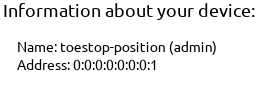
- Use name and address to find the device in the list on the devices page. Add a comment that will help you identify the device during the course of the event. Adjust the access mode of the device if necessary.
Regaining write access when you are locked out of the scoreboard
When the scoreboard does not know about any device with write access (e.g. after it hasn't been used for more than 15 days) write access for new devices will automatically be enabled at startup. If this situation arises while the scoreboard is running, stopping and restarting the scoreboard server will fix the situation.
When there are devices with write access listed but you either don't have access to them or the corresponding browser cookie has been deleted, there are two ways to recover.
Method 1:
- Go to the Up / Download screen and there select the ScoreBoard Data tab.
- In the download area click on All Data and store the resulting file somewhere, where you'll find it again.
- Stop the scoreboard server.
- In your scoreboard folder navigate to config -> autosave.
- Move all the files scoreboard-n-secs-ago somewhere else.
- Restart the scoreboard server. The scorebaord should now be in the same state as after you downloaded it.
- Go to the ScoreBoard Data tab again.
- In the upload area select the file you saved previously and then select Replace running scoreboard.
- Now all your data should be back and your current device should still have write access. If something went wrong you can restore the previous state by stopping the scorebaord and moving the autosave files from step 5 back to their original location (overwriting any files that may have been written in the meantime).
Method 2: Stop the server and use a text editor to modify the entry in config/autosave/scorebaord-0-secs-ago.json for "ScoreBoard.Clients.NewDeviceWrite" from false to true. Restart the server. (You may also have to delete the CRG cookie or use a different browser in order for your device to be recognized as a new device.)
Penalty Tracking
For penalty tracking tablets with about 10" screen diagonal and a 1080 resolution generally work quite well.

Before the game
- If your crew is not tracking lineups with CRG verify that the "CRG Tracks Lineups" setting is disabled.
- If there is an orange "Go To Current Game" indicator at the top of the screen tap it.
Basic procedure
- When a penalty is issued, tap on the corresponding skater's number or an empty cell in their row and in the popup tap on the corresponding penalty code.
- If you didn't get the penalty code, you can use the "?" placeholder code and after you found out the correct code later tap on the penalty and then tap on the correct code.
- When a penalty is removed, tap on the penalty and click Delete.
Less common situations
Recording a penalty after the skater left the box
- Before setting the penalty code tap the "Served" button in the popup.
Lineup Tracking
For lineup tracking tablets with about 10" screen diagonal and a 1080 resolution generally work quite well.

Basic procedure
Before the game
- If lineup tracking mode is disabled, there will be a popup saying so. Tap "Enable" to enable lineup tracking mode.
- If you haven't selected a team, there will be a popup that allows selecting a team. Mark the team you are supposed to track and press "Save".
- If you want to change your selection, you can get back to the popup by tapping the team name in the header row.
- If there is an orange "Go To Current Game" indicator at the top of the screen tap it.
Before the Jam
- Once the skaters take to the track, mark the lineup for your team by tapping the "J", "P", or "B" column for the jammer, pivot, and blockers respectively.
- You can copy the lineup from a previous jam by tapping the corresponding jam number in the paperwork part of the screen.
During the Jam
- When a skater is sent to the box, wait until they sit down, then tap the "Box" button for that skater. The button will turn light blue and get an exclamation mark in the corner when the penalty tracker enters a penalty for the skater and red with a dash in the corner once the skater is marked as sitting.
- For skaters that only sit after the jam ends don't do anything at this point.
- When a skater is released, mark that by tapping their "Box" button again.
- In the case of a star pass you don't have to do anything. The star pass indication will be taken from the scoreboard operator.
- You can tell that the scoreboard operator marked the SP by the small SP indicator in the top row turning green and an SP row appearing at the top of the paperwork.
At Jam end
Once the scoreboard operator marks the jam end, the column next to the "Box" buttons will turn orange with the text "Go To Next Jam"
- Make sure you are done recording the ending jam's lineup and have recorded all box entries and leaves that happened before he jam was over.
- For skaters that sit down close to the whistle, agreeing on a hand signal with the penalty box officials can help getting a quick clarification.
- Once you are done with the ended jam, tap "Go To Next Jam". All skaters that are not in the box and don't have an unserved penalty credited to them will be placed back on the Bench.
- Now mark all skaters in the box that sat down between jams.
- If a skater doesn't have an unserved penalty entered for them, you will have to enter them to their position before you can mark them in the box. In this case you may also want to make the PT aware of the missing penalty, if they aren't already.
- Unless you have reached the end of the period continue with the Before the Jam part for the next jam.
Less common situations
Substitutions
- Finish the jam end procedure above.
- If the substituted skater never sat down, mark them as sitting down now.
- Tap the menu icon next to the substituted skater's "Box" field.
- In the button row select the substituting skater.
Self-reports and overturned penalties
- If the box trip is still ongoing
- Tap the menu icon next to the penalized skater's "Box" field.
- In the popup select "No Penalty" or "Penalty Overturned" as appropriate.
- If the box trip has been completed
- In the paperwork find an entry corresponding to that box trip and tap it.
- In the popup select "No Penalty" or "Penalty Overturned" as appropriate.
- Close the Popup.
Undo ending a box trip
Note that simply tapping the "Box" field again would start a new box trip which is not correct.
- During a Jam:
- Tap the menu icon next to the "box" field.
- In the popup tap "Unend Box Trip".
- Outside of a Jam:
- In the paperwork find the entry for that skater in the top row and tap it.
- In the "Box Trips" section of the popup identify the correct trip. Tap the "+" button in the "End" column until the value next to it reads "ongoing".
Changing start and end point of a box trip
- In the paperwork find an entry corresponding to that box trip and tap it.
- In the "Box Trips" section of the popup identify the correct trip. Tap the "+" and "-" buttons in the "Start" and "End" column to adjust the corresponding values.
- Close the popup.
Injury call offs etc.
When a skater has to sit out after an injury calloff or substitution
- In the paperwork find their entry for the jam that just ended. (It should be in the second row from the top if you are recording this as it happens.) Tap that entry.
- In the popup that opens tap "Sit out next 3".
- Close the popup.
No pivot fielded
- Simply mark all 4 blockers as such. Note: There is currently a bug where the 4th blocker is sometimes marked as a pivot. If this happens, simply tap the "B" field again to fix.
Empty spots
- When the team fields fewer blockers than they are allowed to, tap the "?" in the current jam.
- In the popup select "No Skater fielded".
- Close the popup.
Note: If the team actually fielded a skater but you didn't spot who it was leave the "?".
Scoreboard Best Practices
Use Hotkeys at least for clock controls as you want your clocks to be as accurate as possible. Pressing a key is almost always faster then clicking with the mouse. Especially if your finger is already resting on the key.
Enable Replace on Undo. Without Replace pressing the wrong one of the clock controls is a huge pressure situation as every second you don't fix it the clocks run further away and you will have to fix them manually, if that is possible at all. Plus you may have messed up other data, e.g created another jam, which will take more effort to clean up. With Replace you have the time to first think for a moment what just happened and what you can do to fix it and then fix it completely with two clicks/button presses. (This setting will be enabled by default in CRG 2023 after people had sufficient time to learn about it.)
Disable Auto-End Jam. Simply reacting to the jam ending whistles when they happen takes less effort than checking the jam duration first. And if Jams are not called off on time (Jam Timers are human), your lineups will still last 30s from the end of the jam instead of being shortened (or requiring the jam timer to ignore the publicly visible lineup clock). (The setting is enabled by default in CRG 4.x and 5.x/2023.x because it has been this way for a very long time and there are a substantial number of people out there that have trained themselves to explicitly rely on it. The default will change in CRG 2025.)
Delete old games from time to time. Each game will increase the size of the internal data notably which will eventually lead to performance impacts if the data grows too large. Note that deleting a game from the internal list does not delete any exported statsbooks or data files from the game (and there is no need to clean up those).
When using a projector, consider not using Team Logos and instead have larger team names. Contrast on projectors is often not that great which can lead to neither logo nor name being very recognizable.
Clearing browsing data is strongly recommended if you are upgrading from version 3.x to version 4.x or higher. It shouldn't be needed when switching between different releases of 4.x and above.
If you are using a Windows system, leave it connected to the internet a day or two beforehand and manually run Windows Update to ensure that patches won't be automatically applied during the game. (Or alternatively, ensure you disable the device's ability to communicate with the outside world so it can't capture updates.)
Graphics
Note: For best compatibility use PNG or JPG images.
Full-Screen Images
Full-screen images should be the same resolution as the projector for best quality. Other sizes will be scaled.
They are stored in:
html\images\fullscreen
Sponsor Banners
Ad images should be aspect ratio 5:1 (e.g. 1600x320).
They are stored in:
html\images\sponsor_banner
Team Logos
Team Logo images should be aspect ratio 2.667:1 (e.g. 640x240).
They are stored in:
html\images\teamlogo
External Links
The following pages and videos are not maintained by the CRG development team, and are not guaranteed to be accurate, complete, or even still in existence, but they may provide some help. If a version is given, that's the CRG version they were (or appeared to be) based on the last time the respective entry was updated.
How Tos
(Version 2023) The visual indicator of dots on the current trip is from the Dot System originally developed by Nine Inch Wheels. Here is a link to a google drive share with information on how it works.
(Version 4.0) Here is a playlist with video tutorials by Brain of Terror on the Dublin Roller Derby youtube channel.
(Version 3.2.3) The Downunder Derby channel on YouTube has several helpful how-to videos put together by Flat Track Protocol of Downunder Derby TV.
(Version 3.9) The Carolina Scoreboard Help Sheet is a guide to getting started as a scoreboard operator, written by Cyber Spice from Spa Town Roller Derby.
(Version 3.0) A quick start Google Document including screenshots is available courtesy of Paulie Walnuts.
An overview of running CRG Scoreboard on the Raspberry Pi 3 was written by Sebastian Vollnhals.
Addons/Custom Screens
- A custom slideshow that will display the score and sponsorship banners at halftime is available from Thom Grimes here.
- (Version 4.0) Official Sounding wrote an app that plays jam timer signals based on the state of a CRG instance.
- (Version 4.x & 5.x) jamstats is a tool by Damon May that visualizes game stats based on CRG data.
Controls
This is a description of all the elements on the main operator panel, moving from top to bottom, and left to right.
Options buttons
- Edit Key Control - Used for Configuring Hotkeys
- Auto End Jams - When active the running jam will automatically be ended as soon as the jam clock reaches 0. It is recommended to disable this. Unlike the other settings in this bar this setting is not stored per user.
- Sudden Scoring - When active, JRDA sudden scoring rules are used. This button is only visible if the corresponding rule is enabled and the halftime clock has run down or period two has been started.
- Enable Replace on Undo - When active, pressing the "Undo" button will allow you to replace your button press with a different one at the same time. Very useful when an assumed jam start whistle turns out to actually be a timeout whistle. There is an option to replace with "No Action" which gives normal undo behaviour.
- Show Start/Stop Buttons - Displays start and stop buttons on each individual clock. You should not normally need those.
- Use Score Adjustments - Enables the score adjustments section described below.
- Show Tab Bar - Allows hiding the tab bar above. Can be useful on small screens.
- Start New Game - Starts a new game.
- End of Period Controls - Displays controls to be used at the end of the period. Will turn orange to remind you at the end of the period.
End of Period Controls

- (Un)official Score - When activated marks the game as finished and the score as final.
- Timeout Before Period End - Returns the scoreboard from "Unofficial Score"/"Intermission" to a timeout with time left on the period clock. (A popup will come up allowing you to set that time.)
- Overtime - Brings up a dialog box to set the lineup time leading to an overtime jam.
- Show Clock during Final Score - When enabled the intermission clock will be displayed underneath the "Final Score" label. This can be used to indicate the time to the next game while still showing the previous result.
Clock Controls
These buttons change their text based on the current function. When they are inactive the text will be "---"
- Start Jam - Starts a jam.
- Continuation Upcoming (only visible if the Jam.InjuryContinuation rule is enabled and the prior jam is marked as having been called for injury) - marks the next jam as an injury continuation jam as defined in the JRDA rules.
- Stop Jam/End Timeout/Lineup - Ends the current jam or timeout (if any) and starts the lineup clock. (If the scorebaord is configured to continue showing the timeout clock after the end of the timeout, pressing this button will only mark the timeout duration in the internal data but not change the displayed clock.)
- Timeout/New Timeout - Starts a (new) timeout.
- Un-... - Pressing this will undo the last press of a clock control button. (See "Enable Replace on Undo" above for modifying the bahaviour of this button.)
Team Controls
Each team has a set of controls and displays for that team. They are identical except for being mirror images.
- Logo Dropdown - Allows you to change the logo for team on the scoreboard. Will NOT change the stored logo for the team. Logos must be located in /html/images/teamlogo/
- Team Name - If you click on the team name, you can edit/enter an alternate name for the team that is displayed on this screen as well as the PT and LT screen.
- Points +1 / Points -1 - Raises or lowers the score in the current scoring trip by one point. If you need to change the score for a previous trip, this is most easily done on the SK sheet.
- Add Trip / Remove Trip - Adds a new scoring trip or removes the current scoring trip and returns to the previous one. (Note that removing a trip will remove any points already entered for that trip.)
- 0 / 1 / 2 / 3 / 4 - Sets the score for the current scoring trip to the given value. Particularly useful if defined as hotkeys.
- Team TO - Declares a team timeout. While you can press this to stop the period clock, it's generally easier to use the larger timeout button at the top to do so, then press this button to indicate that the stoppage is a team timeout for this team. This button will be highlighted if we are currently in a team timeout for this team.
- <number of timeouts> - This is the number of timeouts a team retains. By clicking it you will get a popup that allows you to edit the set of timeouts. (Explained below in the clock controls section.)
- Off Review - Declares an official review. Everything above about a team timeout applies.
- <number of official reviews> - Opens the same popup as the timeout number.
- Retained - Indicates an official review has been retained. (Note: If a team wins two ORs in the same period you should mark both as retained and the software will still determine that the team has no review left.)
- Star Pass - Transfers jammer status from the selected jammer to the selected pivot, if both were entered previously. Note that the selected numbers in the button rows will not change. If you are using a third party video overlay, verify ahead of time that this button functions properly with your overlay.
- No Pivot - Indicates that the skater selected at the pivot buttons is actually a 4th blocker and no Star Pass is possible. (The software will ignore any attempt to set one.) If lineups are tracked via CRG, this will be controlled by the LTs inputs. If they aren't, you can optionally mark this yourself.
- Lost/Lead/Call/Inj/NI match the check boxes on the SK sheet for the current jam.
- Lead - Indicates that the jammer has gotten lead. Setting this will also advance out of the initial trip. Use "Remove Trip" if the Jammer didn't make it out of the Engagement zone after getting Lead. (If the initial trip is already marked as completes, e.g. because lead is awarded late this button will not affect the trip.)
- Lost - Indicates that the jammer has lost lead or the eligibility to get lead. This will be set automatically if a Jammer penalty or trip advancement is entered while lead is still open.
- Call - Indicates that the jammer has called off the jam. Is automatically marked if a jam ends after less than 2 minutes and the jammer was lead. If you press this during a jam, the jam will be stopped.
- Inj - Indicates that the jam was called for injury. This is synced between both teams and will unset "Call" (and vice versa). In the rare event that a lead jammer calloff and an injury calloff happened at the same time, you can mark both boxes in the SK-sheet. If you press this during a jam, the jam will be stopped.
- NI - Indicates that the jammer is still on their initial trip (or never completed it if the jam is over). When active pressing it has the same effect as "Add Trip". During the first scoring trip it has the same effect as "Remove Trip". During later trips, pressing it has no effect.
- <Jammer Number Buttons> - Used to select the jammer. Skaters that have been a Jammer in this game are marked with a dark background.
- Box (Jammer) (Not available when lineup tracking is used in CRG 4.1 and later) - Indicates the jammer has gone to the box. Press again to rescind box status. If the jammer is still in the box at the end of the jam, their number will be retained for the next jam.
- <Pivot Number Buttons> - Used to select the pivot. Skaters that have been Pivot in this game are marked with a dark background.
- Box (Pivot) (Not available when lineup tracking is used in CRG 4.1 and later) - Indicates the original pivot has gone to the box. (Use this button for the pivot-turned-jammer after a star pass.) Press again to rescind box status. If the pivot is still in the box at the end of the jam, their number will be retained for the next jam. If the jam ends with the pivot in the box after a star pass, this will transfer their number to the "jammer" box.
Clock Details
There are five individual clocks - Period, Jam, Lineup, Timeout, and Intermission. In most circumstances, you will not manually adjust the controls for any of these clocks. The one exception is the period clock during timeouts, which you will adjust as directed by the jam timer. As the controls are the same for each clock, they will be described here once only, from top to bottom.
- <Clock Name> - Self explanatory
- <counter> - This gives the number associated with each clock. The period and jam numbers have their usual meanings. Note that the jam number displayed between jams is the number for the previous jam. The lineup number is essentially meaningless. The timeout number is the total number of timeouts in the game. The Intermission number follows the period number. Clicking the number of periods, jams, or timeouts will open a popup that allows editing, adding, or removing the respective type of element.
- Start / Stop - manually starts and stops the clock. As this is not the intended way to start and stop the clocks, it is strongly discouraged that the scoreboard operator use these buttons except for testing. They are not guaranteed to work as desired in a game situation at present, or in the future. (These buttons are only visible if enabled with the corresponding control at the top.)
-1 / <clock> /+1 - The -/+ keys decrement and increment the time on the clock. Note that in most cases, clocks should not be adjusted while they are running unless specifically envisioned in the procedures for your game or tournament. Clicking the clock will bring up a sub window:
- Time
- Start / Reset Time / Stop - Start and stop are identical to the buttons on the main page. Reset Time returns the clock to zero.
- -sec / +sec - Like the +/- 1 buttons on the main page.
- Set - Sets the clock to the value entered in the box.
- Maximum Time - Use these controls to set the maximum value to which this clock can be set. (Note that for the Intermission clock this value will usually be adjusted automatically when you start the clock.)
- Time
Periods & Jams Popup Displays a list of all periods/jams on record with some information on them.

- Nr - The number of the period/jam
- Jams (Period only) - The number of jams in the period
- Points (Jam only) - How many points each team scored in the jam
- Duration - How long the period/jam lasted. In the case of a period, this includes time for clock stoppages.
- Delete - Delete this period/jam. Jams with points and/or a star pass cannot be deleted. You have to remove the points/SP first. Attention! Deleting a period will delete all points recorded for that period. Use with care.
- Insert Before - insert an extra period/jam before this one.
Timeouts Popup Displays a list of all timeouts recorded.

- Period - The period during which the timeout happened.
- After Jam - The jam that directly preceded the timeout.
- Duration - The value on the timeout clock when "End Timeout" was pressed.
- Period Clock - The value on the period clock at the end of the timeout (i.e. taking clock adjustments during the timeout into account).
- Type - The type of timeout.
- Retained (OR only) - Indicates if the OR was retained.
- Delete - Delete this timeout.
- Add Timeout - Add a timeout to the selected period. You can edit jam and type afterwards.
Score Adjustments

This section is only visible if enabled in the options at the top. It is intended to give the ability to record score adjustments for earlier scoring trips with hotkeys to be applied to a the scoring trip when the operator is comfortable taking their eyes off the track. (Usually at the end of the jam.)
- +1 / -1 - Change the active score adjustment.
- Stash - Stash the active score adjustment and start a new one. The adjustment is also stashed 4 seconds after the last edit or when the jam ends.
Below are all the stashed adjustments that have not been applied yet. For each of them you can select a trip to apply them to or discard them.
SK sheets
The SK sheets use the same layout as the corresponding sheets from the WFTDA statsbook except that the rows are reversed so the most recent jam is at the top and older jams scroll out of view and there are extra rows for timeouts inserted at the corresponding points.
You can toggle/edit most elements by clicking on them. The columns are from left to right:
- Edit Button - turns the row into edit mode. This adds a number of buttons that allow you to edit the corresponding jam/timeout.

- Add SP (only when there is no SP recorded for the team this jam) - Adds a star pass for this team to the jam.
- SP on Initial (only when team made an SP) - toggles if the star pass happened during the initial trip or a scoring trip.
- Insert Timeout - Add a timeout after this Jam.
- + / - - Edits the points for this trip.
- X - Removes this trip.
- <arrows> (only when team made an SP) - Move this scoring trip into this row.
- Add - Add another scoring trip at the end.
- Remove Jam - Remove this Jam.
- Insert Jam - Insert another Jam before this one.
- Jam Number - The number of the jam, SP, or SP*. Note that due to reversal SP rows belong to the jam number below them.
- Jammer - The number of the jammer. Clicking on it opens a popup in which you can select the jammer.
- Lead/Lost/Call/Inj - Checkboxes that can be toggled by clicking on them. Note that Inj is synced between teams.
- NI - Click on this to get a popup that allows editing the initial trip.
Scoring Trips - Clicking on them opens a popup that allows editing the corresponding trip

- Points - Edit the points for the trip. (If empty when closing the popup, the trip will be deleted - make sure to set to "0" for a 0 point trip.)
- After SP - Was this trip completed after an SP? When you want to add an SP to a jam or move it to an earlier trip, select this for the first trip that should go in the SP row. All later trips will be moved there as well. In order to move an SP to a later trip, unselect this in the latest trip that should be on the original jam row. All earler trips will be moved there as well.
- Remove Trip - Remove this trip. All following trips (if any) will move left by one box.
- Insert Trip - Insert a new trip and move this and all follwoing trips one box to the right. In CRG 4.1 and after this will switch to editing the newly inserted trip.
- Notes - Allows you to store arbitrary annotations.
- Prev/Next - Edit the previous/next trip.
- Jam Score/Total Score - The sum of points for all trips in/up to this row. These can not be directly edited.
- Clicking on the Jam Score will open a popup in which you can edit an OS offset value and reason for the jam.
Team Editor
In order to display jammer names or team logos on the scoreboard, or use the stats tracking functionality, each team must be entered ahead of time. This also allows for the storage of team data, such as colors and alternate names, for easy retrieval later.
Stored Teams vs. Per Game Teams
CRG distinguishes between stored teams and per game teams. There can be any number of stored teams and there will always be two per game teams for each game. These can be either linked to a stored team or custom. The editor for stored teams will always be a screen with a single team while the editor for per game teams will be a tab with both of the game's teams side by side.
Header
The header of the team editor varies depending on team type and game state.
Custom Team before game start:

Custom Team after game start:

Linked Team before game start:

Linked Team after game start:

Stored Team:

- (Per game teams only) Selecting a stored team from the dropdown will replace all team info with the info of that team and link the per game team to that team.
- This is only available before the game starts as replacing the team after that would break the stats.
- (Custom teams only) Store Team - This will open a poup allowing you to either select a stroed team to merge this team into or create a new stored team by copying the info from this team. The team will afterwards be linked to the stored team created or merged into.
- (Linked teams only) Sync Changes - When active most changes are copied between the per game team and the linked stored team.
- If more per game teams are connected to the same stored team with sync active, changes are copied to/from them as well.
- Alternate names, colors, and skater flags are only copied on initial load but not synced.
- For uniform colors, new colors added to the stored team are added to the dropdown here but nothing is transferred the other way.
- By default Sync is enabled when a team is initially linked and disabled once the game starts but you can toggle it manually at any time. Note: After game start it is recommended to only activate sync temporarily if you explicitly want to sync a specific change and deactivate it right afterwards.
- Changes made while sync is deactivated are NOT automatically synced when you activate sync later.
Team Data
This section contains information pertaining to the team as a whole.

The uniform color again has multiple variations depending on team type. Above is for a custom team. Linked team:

Stored Team:

- Logo Dropdown - Allows you to select one of the logos in
html/images/teamlogofor the team. - Upload... - Allows you to upload a new logo file and set is this team's logo.
- Alternate Names - Allows you to set specific names to be used in various places in the software. See "Team Names" below for an overview of where which of these names is used.
- Colors - Allows you to set colors used for the team in various places.
- You can edit the Text/Icon, Background, and Glow/Halo colors for each item. Make sure you allow plenty of time to verify that the colors you have selected are sufficiently visible and remember that what is visible well on a screen may not be on a projector. Be prepared for some experimentation to achieve acceptable results.
- League - The name of the league the team is from.
- Team - The team's name.
- Uniform color - Which color(s) the team plays in.
- For a linked team this is a dropdown with all the colors from the stored team and the option "Other" which allows you to enter a name.
- For a stored team this is a list of uniform colors. You can add new colors by entering them and clicking "Add" or pressing enter. Remove colors by clicking the "X" button to their right.
Team Names
In addition to the league name, team name, uniform color, and alternate names that you can set explicitly in the team editor there are a number of names that are derived from these:
- The full name
- If league name and team name are both set and different the full name is "\
- \ ". - If league name and team name are both set and equal the full name is the same.
- If either league or team name is set but the other isn't the full name is the name that is set.
- (Per game teams only) If neither league nor team name is set but a uniform color is, that is used as full name.
- If neither league nor team name (nor a uniform color) is set the full name is "Unnamed Team".
- If league name and team name are both set and different the full name is "\
- The display name is either league, team, or full name. Which one it is can be configured in the settings. The default is league name.
- If the configured name is empty the full name will be used instead.
- The name used for game data files behaves the same as the display name but can be configured independently.
- The Initials are all capital letters from the display name joined together.
The various places in the scoreboard will then use the following names (when multiple names are given the first nonempty one is used):
- Main display:
scoreboardalternate name, display name - Stream Overlay:
overlayalternate name, display name - Penalty Whiteboard:
scoreboardalternate name, uniform color, display name- From 5.0.1:
whiteboardalternate name, uniform color, display name
- From 5.0.1:
- Operator Screen, (P)(L)T input screens:
operatoralternate name, uniform color, display name - Data Management screen: full name
- Game name %1, %2: display name
- Game data JSON, statsbook: data file name
Skater Data

- Skaters are automatically sorted by number in derby order.
- When you have skaters in tabular form with numbers in column 1, names in column two, and optionally pronouns in theb last column, you can copy the table and paste it into either the new number, the new name, or the pronoun field and all of the skaters will be added at once.
- Pressing tab in the new number field will switch to the new name field, pressing tab again moves to the pronouns field. Pressing enter in either of these fields will add the skater and switch to the new number field. This allows entering multiple skaters without having to switch between keyboard and mouse.
- To change a number or name just edit the corresponding field and click outside of it (or press tab).
- When a skater is listed on the IGRF but not participating in the game mark them as "Not Skating" instead of deleting them. This will cause them to be hidden from all in game screens but still be listed on the IGRF.
- Marking a "skater" as "Bench Staff" or "Bench Alt Captain" will hide them from in game screens as well as remove them from the roster on the IGRF.
- When you mark a skater as Captain they will be indicated as such on the Penalty Tracking and Whiteboard screens.
- When you try to remove a skater after they have been fielded for a jam, this will silently fail in order to avoid corruption of game data.
Ruleset Editor

For builtin rulesets there will not be an "Update" button and no fields can be edited.
General part
- The Current Ruleset selector only appears in the ruleset tab for a game and allows you to select which a ruleset that should be used for that game or "Custom".
- When this is set to a ruleset the edit part below will edit the stored ruleset (which will also affect this game). When set to "Custom" it will edit the rules for this game only.
- Once a game starts this is forced to "Custom" in order to avoid unintentional changes mid game.
- The Name field allows you to give your ruleset a name.
- The Parent ruleset is the ruleset from which any rule will be taken that is not set explicitly in this ruleset.
Rules part
- You can open and close the various sections by clicking on their header.
- In order to change a rule check the Box at the start of its row and edit the value on the right.
- Uncheck the box in order to revert to the value from the parent ruleset.
- For a custom ruleset the box will always be checked.
- When hovering over a rule name a tooltip with a short explanation of the rule will show.
Explanation of the various rules
to be written
IGRF Editor
This tab allows you to edit all the data found on the IGRF (except for teams) and generate/download game data and statsbook files.
Header

- You can edit the name format for the game by clicking on the game name at the top of the tab.
- The default format used for new games can be changed in the settings.
- Changing the setting will not affect any existing games.
- You can give a fixed name for a game by using a format without any variables.
- The default format used for new games can be changed in the settings.
- While the game is running (i.e the first jam has started and the score is not marked as official yet) there is a button after the game name that allows you to end the game.
- If the game has run its full length this will simply mark the score as official. (So you don't have to load the game into the main display if the SBO forgot to do so.)
- If the game has not run its full length this will mark the game as having ended prematurely and allow you to enter/edit the reason below the event/venue information.
- You can only mark a game as having ended prematurely when it is in a timeout or intermission.
- You can undo this by unmarking "Official Score" on the main game controls (if the game is the currently active one).
Manage Game Data Files

The buttons allow generating and downloading the game data JSON and statsbook files.
- Before the score is official the JSON file will be updated whenever a jam or timeout ends. Afterwards it will be updated on every change (except clock ticks) until the first time it is manually updated using the "Update" button on the IGRF tab.
- Manual updates before the game will not inhibit automatic updates after the game.
- After the first manual update the json file is only updated when "Update" is pressed again. It is recommended to do a manual update once you are done processing the sheets to protect the data file from accidental changes.
- The statsbook file will only be generated on manual updates and only if a blank WFTDA statsbook has been set up.
- In order to generate statsbooks you have to download a blank copy of the January 2019 version of the WFTDA statsbook (US letter and A4 both work) and upload it to CRG on the "Games / Teams / Rulesets" screen.
- Generating a statsbook may take a few seconds. There will be a spinner indicating that the operation is still in progress.
- While statsbook generation has been implemented in a way that should minimize interference with other operation, it may still cause some lag on slower computers simply due to the processor load it causes. On such computers it is recommended to only generate statsbooks during stoppages of gameplay. If you still want to update the JSON file before that, you can temporarily unset the path to the blank statsbook.
- The generated files are also available in the "Game Data" tab of the File management screen and will remain available there after the game is deleted from internal storage.
Game Information

This section contains the event/venue information from the top of the IGRF.
- If you enter a date and start time before loading the game it will be used to set up "Time to Derby".
- If date and/or time are not set they will be filled on game start.
Summary

This section displays the info that has to be put into the summary section of the physical IGRF copy before signing.
Expulsions

If the game had any expulsions they will be listed here, allowing you to enter a brief reason and mark if a suspension was recommended.
Officials

This section allows you to enter/manage the officials roster for the game.
- For Penalty Box Timers, (Penalty) Lineup Trackers, Scorekeepers, and Jammer Referees you can select which team they track in Period 1 and mark if they switched at half time. This is used to fill the header of the sheets in the statsbook.
Controls
This is a description of all the elements on the main operator panel, moving from top to bottom, and left to right.
Options buttons
- Edit Key Control - Used for Configuring Hotkeys
- Auto End Jams - When active the running jam will automatically be ended as soon as the jam clock reaches 0. It is recommended to disable this. Unlike the other settings in this bar this setting is not stored per user.
- Sudden Scoring - When active, JRDA sudden scoring rules are used. This button is only visible if the corresponding rule is enabled and the halftime clock has run down or period two has been started.
- Enable Replace on Undo - When active, pressing the "Undo" button will allow you to replace your button press with a different one at the same time. Very useful when an assumed jam start whistle turns out to actually be a timeout whistle. There is an option to replace with "No Action" which gives normal undo behaviour.
- Show Start/Stop Buttons - Displays start and stop buttons on each individual clock. You should not normally need those.
- Use Score Adjustments - Enables the score adjustments section described below.
- Show Tab Bar - Allows hiding the tab bar above. Can be useful on small screens.
- Start New Game - Starts a new game.
- End of Period Controls - Displays controls to be used at the end of the period. Will turn orange to remind you at the end of the period.
End of Period Controls
- (Un)official Score - When activated marks the game as finished and the score as final.
- Timeout Before Period End - Returns the scoreboard from "Unofficial Score"/"Intermission" to a timeout with time left on the period clock. (A popup will come up allowing you to set that time.)
- Overtime - Brings up a dialog box to set the lineup time leading to an overtime jam.
- Show Clock during Final Score - When enabled the intermission clock will be displayed underneath the "Final Score" label. This can be used to indicate the time to the next game while still showing the previous result.
Clock Controls
These buttons change their text based on the current function. When they are inactive the text will be "---"
- Start Jam - Starts a jam.
- Continuation Upcoming (only visible if the Jam.InjuryContinuation rule is enabled and the prior jam is marked as having been called for injury) - marks the next jam as an injury continuation jam as defined in the JRDA rules.
- Stop Jam/End Timeout/Lineup - Ends the current jam or timeout (if any) and starts the lineup clock. (If the scorebaord is configured to continue showing the timeout clock after the end of the timeout, pressing this button will only mark the timeout duration in the internal data but not change the displayed clock.)
- Timeout/New Timeout - Starts a (new) timeout.
- Un-... - Pressing this will undo the last press of a clock control button. (See "Enable Replace on Undo" above for modifying the bahaviour of this button.)
Team Controls
Each team has a set of controls and displays for that team. They are identical except for being mirror images.
- Logo Dropdown - Allows you to change the logo for team on the scoreboard. Will NOT change the stored logo for the team. Logos must be located in /html/images/teamlogo/
- Team Name - If you click on the team name, you can edit/enter an alternate name for the team that is displayed on this screen as well as the PT and LT screen.
- Points +1 / Points -1 - Raises or lowers the score in the current scoring trip by one point. If you need to change the score for a previous trip, this is most easily done on the SK sheet.
- Add Trip / Remove Trip - Adds a new scoring trip or removes the current scoring trip and returns to the previous one. (Note that removing a trip will remove any points already entered for that trip.)
- 0 / 1 / 2 / 3 / 4 - Sets the score for the current scoring trip to the given value. Particularly useful if defined as hotkeys.
- Team TO - Declares a team timeout. While you can press this to stop the period clock, it's generally easier to use the larger timeout button at the top to do so, then press this button to indicate that the stoppage is a team timeout for this team. This button will be highlighted if we are currently in a team timeout for this team.
- <number of timeouts> - This is the number of timeouts a team retains. By clicking it you will get a popup that allows you to edit the set of timeouts. (Explained below in the clock controls section.)
- Off Review - Declares an official review. Everything above about a team timeout applies.
- <number of official reviews> - Opens the same popup as the timeout number.
- Retained - Indicates an official review has been retained. (Note: If a team wins two ORs in the same period you should mark both as retained and the software will still determine that the team has no review left.)
- Star Pass - Transfers jammer status from the selected jammer to the selected pivot, if both were entered previously. Note that the selected numbers in the button rows will not change. If you are using a third party video overlay, verify ahead of time that this button functions properly with your overlay.
- No Pivot - Indicates that the skater selected at the pivot buttons is actually a 4th blocker and no Star Pass is possible. (The software will ignore any attempt to set one.) If lineups are tracked via CRG, this will be controlled by the LTs inputs. If they aren't, you can optionally mark this yourself.
- Lost/Lead/Call/Inj/NI match the check boxes on the SK sheet for the current jam.
- Lead - Indicates that the jammer has gotten lead. Setting this will also advance out of the initial trip. Use "Remove Trip" if the Jammer didn't make it out of the Engagement zone after getting Lead. (If the initial trip is already marked as completes, e.g. because lead is awarded late this button will not affect the trip.)
- Lost - Indicates that the jammer has lost lead or the eligibility to get lead. This will be set automatically if a Jammer penalty or trip advancement is entered while lead is still open.
- Call - Indicates that the jammer has called off the jam. Is automatically marked if a jam ends after less than 2 minutes and the jammer was lead. If you press this during a jam, the jam will be stopped.
- Inj - Indicates that the jam was called for injury. This is synced between both teams and will unset "Call" (and vice versa). In the rare event that a lead jammer calloff and an injury calloff happened at the same time, you can mark both boxes in the SK-sheet. If you press this during a jam, the jam will be stopped.
- NI - Indicates that the jammer is still on their initial trip (or never completed it if the jam is over). When active pressing it has the same effect as "Add Trip". During the first scoring trip it has the same effect as "Remove Trip". During later trips, pressing it has no effect.
- <Jammer Number Buttons> - Used to select the jammer. Skaters that have been a Jammer in this game are marked with a dark background.
- Box (Jammer) (Not available when lineup tracking is used in CRG 4.1 and later) - Indicates the jammer has gone to the box. Press again to rescind box status. If the jammer is still in the box at the end of the jam, their number will be retained for the next jam.
- <Pivot Number Buttons> - Used to select the pivot. Skaters that have been Pivot in this game are marked with a dark background.
- Box (Pivot) (Not available when lineup tracking is used in CRG 4.1 and later) - Indicates the original pivot has gone to the box. (Use this button for the pivot-turned-jammer after a star pass.) Press again to rescind box status. If the pivot is still in the box at the end of the jam, their number will be retained for the next jam. If the jam ends with the pivot in the box after a star pass, this will transfer their number to the "jammer" box.
Clock Details
There are five individual clocks - Period, Jam, Lineup, Timeout, and Intermission. In most circumstances, you will not manually adjust the controls for any of these clocks. The one exception is the period clock during timeouts, which you will adjust as directed by the jam timer. As the controls are the same for each clock, they will be described here once only, from top to bottom.
- <Clock Name> - Self explanatory
- <counter> - This gives the number associated with each clock. The period and jam numbers have their usual meanings. Note that the jam number displayed between jams is the number for the previous jam. The lineup number is essentially meaningless. The timeout number is the total number of timeouts in the game. The Intermission number follows the period number. Clicking the number of periods, jams, or timeouts will open a popup that allows editing, adding, or removing the respective type of element.
- Start / Stop - manually starts and stops the clock. As this is not the intended way to start and stop the clocks, it is strongly discouraged that the scoreboard operator use these buttons except for testing. They are not guaranteed to work as desired in a game situation at present, or in the future. (These buttons are only visible if enabled with the corresponding control at the top.)
-1 / <clock> /+1 - The -/+ keys decrement and increment the time on the clock. Note that in most cases, clocks should not be adjusted while they are running unless specifically envisioned in the procedures for your game or tournament. Clicking the clock will bring up a sub window:
- Time
- Start / Reset Time / Stop - Start and stop are identical to the buttons on the main page. Reset Time returns the clock to zero.
- -sec / +sec - Like the +/- 1 buttons on the main page.
- Set - Sets the clock to the value entered in the box.
- Maximum Time - Use these controls to set the maximum value to which this clock can be set. (Note that for the Intermission clock this value will usually be adjusted automatically when you start the clock.)
- Time
Periods & Jams Popup Displays a list of all periods/jams on record with some information on them.
- Nr - The number of the period/jam
- Jams (Period only) - The number of jams in the period
- Points (Jam only) - How many points each team scored in the jam
- Duration - How long the period/jam lasted. In the case of a period, this includes time for clock stoppages.
- Delete - Delete this period/jam. Jams with points and/or a star pass cannot be deleted. You have to remove the points/SP first. Attention! Deleting a period will delete all points recorded for that period. Use with care.
- Insert Before - insert an extra period/jam before this one.
Timeouts Popup Displays a list of all timeouts recorded.
- Period - The period during which the timeout happened.
- After Jam - The jam that directly preceded the timeout.
- Duration - The value on the timeout clock when "End Timeout" was pressed.
- Period Clock - The value on the period clock at the end of the timeout (i.e. taking clock adjustments during the timeout into account).
- Type - The type of timeout.
- Retained (OR only) - Indicates if the OR was retained.
- Delete - Delete this timeout.
- Add Timeout - Add a timeout to the selected period. You can edit jam and type afterwards.
Score Adjustments
This section is only visible if enabled in the options at the top. It is intended to give the ability to record score adjustments for earlier scoring trips with hotkeys to be applied to a the scoring trip when the operator is comfortable taking their eyes off the track. (Usually at the end of the jam.)
- +1 / -1 - Change the active score adjustment.
- Stash - Stash the active score adjustment and start a new one. The adjustment is also stashed 4 seconds after the last edit or when the jam ends.
Below are all the stashed adjustments that have not been applied yet. For each of them you can select a trip to apply them to or discard them.
SK sheets
The SK sheets use the same layout as the corresponding sheets from the WFTDA statsbook except that the rows are reversed so the most recent jam is at the top and older jams scroll out of view and there are extra rows for timeouts inserted at the corresponding points.
You can toggle/edit most elements by clicking on them. The columns are from left to right:
- Edit Button - turns the row into edit mode. This adds a number of buttons that allow you to edit the corresponding jam/timeout.
- Add SP (only when there is no SP recorded for the team this jam) - Adds a star pass for this team to the jam.
- SP on Initial (only when team made an SP) - toggles if the star pass happened during the initial trip or a scoring trip.
- Insert Timeout - Add a timeout after this Jam.
- + / - - Edits the points for this trip.
- X - Removes this trip.
- <arrows> (only when team made an SP) - Move this scoring trip into this row.
- Add - Add another scoring trip at the end.
- Remove Jam - Remove this Jam.
- Insert Jam - Insert another Jam before this one.
- Jam Number - The number of the jam, SP, or SP*. Note that due to reversal SP rows belong to the jam number below them.
- Jammer - The number of the jammer. Clicking on it opens a popup in which you can select the jammer.
- Lead/Lost/Call/Inj - Checkboxes that can be toggled by clicking on them. Note that Inj is synced between teams.
- NI - Click on this to get a popup that allows editing the initial trip.
Scoring Trips - Clicking on them opens a popup that allows editing the corresponding trip
- Points - Edit the points for the trip. (If empty when closing the popup, the trip will be deleted - make sure to set to "0" for a 0 point trip.)
- After SP - Was this trip completed after an SP? When you want to add an SP to a jam or move it to an earlier trip, select this for the first trip that should go in the SP row. All later trips will be moved there as well. In order to move an SP to a later trip, unselect this in the latest trip that should be on the original jam row. All earler trips will be moved there as well.
- Remove Trip - Remove this trip. All following trips (if any) will move left by one box.
- Insert Trip - Insert a new trip and move this and all follwoing trips one box to the right. In CRG 4.1 and after this will switch to editing the newly inserted trip.
- Notes - Allows you to store arbitrary annotations.
- Prev/Next - Edit the previous/next trip.
- Jam Score/Total Score - The sum of points for all trips in/up to this row. These can not be directly edited.
- Clicking on the Jam Score will open a popup in which you can edit an OS offset value and reason for the jam.
Penalty Controls
Screen Layout
The screen follows the penalty tracking sheet from the WFTDA statsbook with the two teams side by side. Each row represents a skater. The columns have the following functions:
- # - The number of the skater. Is highlighted in green, when the skater is in the current lineup. Different positions use different shades of green. Tapping the number allows entering a new penalty for the skater.
- When the Skater has been marked as Captain for the team this cell will display a "C" in the top left corner.
- Penalty cells - Denote penalty codes and jams. Tapping a cell with a penalty allows editing or deleting the penalty, tapping an empty cell allows entering a new penalty. Color codes:
- Light Blue (and an exclamation mark next to the penalty code) - This penalty has not yet been served. The skater should be on their way to the box or in the queue. (If the marker is in error, you can mark the penalty served in the edit popup - see below.)
- Green (and a dash next to the penalty code) - The skater (or a substitute) is currently serving this penalty.
- Yellow/Orange/Red (whole row, where not blue or green) - This skater is on 5/6/7 penalties. Red is also used to mark expelled skaters.
- FO_Ex - View, edit, add, or remove a foul out or expulsion. Foul outs are maintained automatically.
- Penalty Count - Lists the number of penalties for each skater. The header gives the total number of penalties for the team.
Edit popup

From top to bottom the elements are:
- Period/Jam selectors - Set the period and jam for which the penalty is recorded. When adding a new penalty this is pre-filled with the current jam or, between jams, the previous jam. If you are recording a penalty for an older or the upcoming jam, you can change this accordingly. Note: When editing period/jam for an existing penalty the edit will only be stored after you tap Set Period/Jam or a penalty code. If you close the popup with the X in the top right corner your change will be discarded.
- Penalty codes - Tap these to select the penalty code. When editing the current code will be highlighted.
- Served - Indicates if this penalty has beeen served. Tap to toggle. This will be automatically marked, once the skater is marked in the box. (If they are currently sitting or lineup tracking is disabled, it will be marked right away.) If you are entering a penalty after the skater has left the box, set this manually.
- Delete - Deletes the penalty or aborts creating a new one.
Lineup Controls
Screen Layout
The screen is divided into two parts:
- The input part at the top is used to track what is currently happening.
- The paperwork part at the bottom is used to view and, if necessary, edit what has happened previously. Remember: Anything in the paperwork that can be fixed now can also be fixed during the next timeout, at halftime, or after the game.
Input part
- Header row
- Team Name - When tapped opens the popup in which you can select the team and change settings.
- SP - Indicates when a star pass for your team has been recorded. While this can also be tapped to mark a star pass, you should normally leave that to the scoreboard operator in order to avoid two toggles canceling each other.
- Penalty sum - Total number of penalties for your team.
Skater rows
- Bench - Indicates that the skater is not part of the current jam. Tap to remove a skater from the current lineup. Note: When a skater has to sit out after an injury or has been expelled or fouled out, this field will not be highlighted even if they are not fielded. You can still field them, if they happen to be on the track (probably while making a skating official aware that there is a skater on the track that shouldn't be).
- J/P/B - Indicates that the skater is fielded as a jammer/pivot/blocker. Tap to field them in the respective position.
- Box - Indicates if the skater has a penalty pending (light blue) or is currently in the box (red). Tap to mark the skater in/out of the box.
- Go To Next Jam (only after a jam) - Allows to advance to entering the next jam. Any box entries/exits marked before tapping this button are recorded as having happened during the jam. Entries/exits recorded after tapping the button are recorded as having happened between jams.
☰ (only for skaters currently fielded) - Opens a popup
 when a skater has not been to the box this jam.
 when a skater is currently in the box.
 when a skater was in the box earlier in this jam.
- Annotation text field - Allows you to enter arbitrary annotations.
- No Penalty and Penalty Overturned - Will end the current penalty and append the text on the button to the annotation.
- Substitute button row - Allows to mark a substitution in the box.
- Unend Box Trip - Will undo marking the skater as released from the box.
Penalty count - Indicates the number of penalties for the skater. Will highlight in yellow/orange/red when the skater has 5/6/7 penalties. Will also highlight in red after an expulsion.
Paperwork section
The paperwork is designed like the lineup tracker paperwork from the WFTDA statsbook. The only exceptions are that the three box trip cells corresposnding to a fielding are merged into a single box and that the order of the rows is reversed.
- Jam number - The number of the Jam, SP, or SP*. Note that SP rows belong to the jam below.
- No Pivot - Indicates if a team didn't field a pivot. Tap to toggle (in non-SP rows).
- Positions - Indicates which skater was fielded in the given position/jam.
- Box Trips - Indicates any box trips by the associated skater during the jam. Tapping this or the position field opens a popup:

- Skater dropdown - Allows selecting which skater was fieled.
- No Skater fielded - When there is no skater number, indicates that this position was empty (as opposed to you missing who it was). Tap to toggle.
- Sit out next 3 - Indicates that the skater being injured caused a call poff or timeout or that the skater had to be substituted from the box for medical or equipment issues. Tap to toggle.
- Annotation text box - Can hold arbitrary annotations. Annotations enetered in the annotation popup during the game will end up here, If there is an annotation, the position field in the paperwork will show a small red square.
- No Penalty and Penalty Overturned - Tap to append the text on the button to the annotation.
- Box Trips - Shows a list of box trips that took place during this fielding.
- Start - Indicates when the skater sat down. Tap the + and - buttons to adjust. Note: You can only extend a box trip into another jam if the skater was part of that jam.
- End - Indicates when the skater was released. Tap the + and - buttons to adjust. By extending a trip beyond the current point in the game that box trip will be marked as ongoing.
- Remove - Tap to delete the box trip. Note: If the box trip was associated with a penalty, the penalty will be marked as unserved again. See the Penalty Tracking page about how to mark it served again.
- Add Box Trip - Add a new box trip. The trip will initially be recored as having started and ended during this jam before the SP (if there was one). Adjust Start and End afterwards as needed.
ScoreBoard Settings
General Settings
- Intermission Labels - This button allows you to change the text used on the clock before and after the game, and between periods.
- Pre Game - The text displayed before the game, when the intermission clock is running. Default: "Time To Derby".
- Intermission - The text displayed between periods, when the intermission clock is running. Default: "Intermission"
- Unofficial Score - The text displayed after the game, but before the "Final Score" button is clicked. Default: "Unofficial Score"
- Official Score - The text displayed after the game, once the "Final Score" button is clicked. Default: "Final Score"
- Official Score with clock - The text displayed after the game, once the "Final Score" button is clicked when the clock during final score is activated. Default: "Final Score"
- Sync Clocks - When active (default) all running clocks will tick over at the same moment.
- Clock shown after Timeout - Which clock should be displayed in the lineup time between the end of a timeout and the start of the next jam. Some people have very strong feelings about this. Default: Lineup
- Auto Start - Should CRG automatically start a Jam or Timeout after the lineup has run for the duration set in the ruleset? This is intended for scrimmages with low staffing where you have to run the scoreboard (mostly) unattended. Default: Off
- Time between end of Lineup and auto start being applied - When Auto Start is active CRG will wait for this time before actually activating autostart. This is intended to give you time to override the auto start behaviour (e.g. start a timeout when auto start would have started a jam). When auto start activates the clocks will be adjusted to the values they would have had without this delay.
- Auto End Jams - When active (default in CRG 5 - default will change in CRG 6) the jam will automatically be ended after the jam clock has reached 0. It is recommended to deactivate this unless you have to run the scoreboard (mostly) unattended.
- Auto End Team Timeouts - When active ends team timeouts after the duration set in the ruleset. Like the other automation settings this is intended for running CRG (mostly) unattended. Default: Off
- CRG Tracks Lineups - Indicates when CRG is used to track the lineups for the current game.
- When active the "Box" buttons for Jammers and Pivots will be hidden from the "Controls" tab as box trips are now entered by the LT.
- When not active (default) penalties will automatically marked as served.
- When you open the LT or PLT screen and lineup tracking is disabled, you will get a button to enable it from there.
- Blank Statsbook File - Path to a blank WFTDA statsbook file (2019 version, both A4 and US Letter will work). The path is relative to your CRG folder. (E.g. "config/wftda-statsbook-full-A4.xlsx" for the A4 version placed in the config subfolder.) Default: Unset, as you will have to download the file yourself.
- There is a checkmark or X next to the field indicating if the file can be used for exports.
- Note: If you upload a blank statsbook through the "Games / Teams / Rulesets" page, this will be set automatically.
- Team Name for Display - The preferred name of a team to be used in most of CRG. See the Team Editor page for a detailed explanation of which names CRG uses where for teams and how they are determined. Default: "League Name"
- Team Name for Files - The name of a team to be used in statsbook files. Note: This must be "Full Name" (default) when exporting statsbooks for WFTDA sanctioned games.
- Name Format for new games - The name format string used when creating a game. Default: "%G %d %1 vs. %2 (%s: %S)"
- Supports the following variables:
| Variable | Meaning |
| -------- | -------------------------------------------------------------- |
| %g: | Game Number |
| %G: | "Game \
: " if game number is set, empty otherwise | | %d: | Date of Game | | %t: | Start Time | | %1: | Team 1 Name | | %2: | Team 2 Name | | %s: | Game State | | %S: | "\ - \ " |
- Supports the following variables:
| Variable | Meaning |
| -------- | -------------------------------------------------------------- |
| %g: | Game Number |
| %G: | "Game \
Main Display Settings
The controls on this page are set up to allow you to preview changes to the scoreboard before you actually display them to the world. When the page first loads, click both Show Preview buttons at the bottom of the page. The left side of the page will now display what's currently visible on the scoreboard, and the right side will display a preview of what will be displayed next.
If you want to live dangerously and apply changes directly to the scoreboard, you can switch the Edit dropdown to read "Live ScoreBoard". Now any changes you make will be instantly visible to the entire venue.
When you edit the preview the usual work flow is as follows:
- Under Current View select the type of screen you wish to display next:
- ScoreBoard - This will display the scoreboard
- WhiteBoard - This will display a penalty whiteboard
- Image - This will display a static image
- Video - This will display a looped video
- Custom Page - This will display a custom HTML page
- Customize the preview screen as outlined below
- When you are happy with the preview and wish to make it visible on the main scoreboard, click Apply Preview
Details on customizing each type of screen are below.
ScoreBoard
- Hide Logos - When active hides team logos from the main scoreboard view in favor of larger names. Logos will still appear on the overlay. Default: Off
- Swap Team Sides - When active swaps which side the teams appear on the scoreboard. This will not affect the operator controls. Default: Off
- Box Style - This dropdown changes the appearance of the boxes on the scoreboard
- Side Padding - This adds padding to the side of the scoreboard. Useful if your projector isn't matching the aspect ratio of the screen well.
Image
This option allows you to select a static image. CRG comes preloaded with a test image, but you can add whatever images you like to the list. To add images, either use the Files screen or start from the directory where you launched the scoreboard, and navigate to html/images/fullscreen/. In the same directory with the test image, drop whatever other images you would like to display.
Once you have your image in the correct directory, select the file from the "Image View" dropdown.
Video
This option allows you to select a video, which will be automatically looped. CRG comes preloaded with a test video. To add videos, either use the Files screen or start from the directory where you launched the scoreboard, and navigate to html/images/fullscreen/. Be sure to test whether your video displays properly well ahead of time.
Once you have your video in the correct directory, select the file from the "Video View" dropdown.
Custom Page
You may write your own custom HTML pages for display on the scoreboard. For a starter on on how to do so see Custom Screen Creation Tutorial. Starting from the directory where you launched the scoreboard, they should be placed in html/custom/view/.
Once you have your page in the correct directory, select the file from the "Custom Page" dropdown.
Penalty Controls
Screen Layout
The screen follows the penalty tracking sheet from the WFTDA statsbook with the two teams side by side. Each row represents a skater. The columns have the following functions:
- # - The number of the skater. Is highlighted in green, when the skater is in the current lineup. Different positions use different shades of green. Tapping the number allows entering a new penalty for the skater.
- When the Skater has been marked as Captain for the team this cell will display a "C" in the top left corner.
- Penalty cells - Denote penalty codes and jams. Tapping a cell with a penalty allows editing or deleting the penalty, tapping an empty cell allows entering a new penalty. Color codes:
- Light Blue (and an exclamation mark next to the penalty code) - This penalty has not yet been served. The skater should be on their way to the box or in the queue. (If the marker is in error, you can mark the penalty served in the edit popup - see below.)
- Green (and a dash next to the penalty code) - The skater (or a substitute) is currently serving this penalty.
- Yellow/Orange/Red (whole row, where not blue or green) - This skater is on 5/6/7 penalties. Red is also used to mark expelled skaters.
- FO_Ex - View, edit, add, or remove a foul out or expulsion. Foul outs are maintained automatically.
- Penalty Count - Lists the number of penalties for each skater. The header gives the total number of penalties for the team.
Edit popup
From top to bottom the elements are:
- Period/Jam selectors - Set the period and jam for which the penalty is recorded. When adding a new penalty this is pre-filled with the current jam or, between jams, the previous jam. If you are recording a penalty for an older or the upcoming jam, you can change this accordingly. Note: When editing period/jam for an existing penalty the edit will only be stored after you tap Set Period/Jam or a penalty code. If you close the popup with the X in the top right corner your change will be discarded.
- Penalty codes - Tap these to select the penalty code. When editing the current code will be highlighted.
- Served - Indicates if this penalty has beeen served. Tap to toggle. This will be automatically marked, once the skater is marked in the box. (If they are currently sitting or lineup tracking is disabled, it will be marked right away.) If you are entering a penalty after the skater has left the box, set this manually.
- Delete - Deletes the penalty or aborts creating a new one.
Lineup Controls
Screen Layout
The screen is divided into two parts:
- The input part at the top is used to track what is currently happening.
- The paperwork part at the bottom is used to view and, if necessary, edit what has happened previously. Remember: Anything in the paperwork that can be fixed now can also be fixed during the next timeout, at halftime, or after the game.
Input part
- Header row
- Team Name - When tapped opens the popup in which you can select the team and change settings.
- SP - Indicates when a star pass for your team has been recorded. While this can also be tapped to mark a star pass, you should normally leave that to the scoreboard operator in order to avoid two toggles canceling each other.
- Penalty sum - Total number of penalties for your team.
Skater rows
- Bench - Indicates that the skater is not part of the current jam. Tap to remove a skater from the current lineup. Note: When a skater has to sit out after an injury or has been expelled or fouled out, this field will not be highlighted even if they are not fielded. You can still field them, if they happen to be on the track (probably while making a skating official aware that there is a skater on the track that shouldn't be).
- J/P/B - Indicates that the skater is fielded as a jammer/pivot/blocker. Tap to field them in the respective position.
- Box - Indicates if the skater has a penalty pending (light blue) or is currently in the box (red). Tap to mark the skater in/out of the box.
- Go To Next Jam (only after a jam) - Allows to advance to entering the next jam. Any box entries/exits marked before tapping this button are recorded as having happened during the jam. Entries/exits recorded after tapping the button are recorded as having happened between jams.
☰ (only for skaters currently fielded) - Opens a popup
when a skater has not been to the box this jam. when a skater is currently in the box. when a skater was in the box earlier in this jam.- Annotation text field - Allows you to enter arbitrary annotations.
- No Penalty and Penalty Overturned - Will end the current penalty and append the text on the button to the annotation.
- Substitute button row - Allows to mark a substitution in the box.
- Unend Box Trip - Will undo marking the skater as released from the box.
Penalty count - Indicates the number of penalties for the skater. Will highlight in yellow/orange/red when the skater has 5/6/7 penalties. Will also highlight in red after an expulsion.
Paperwork section
The paperwork is designed like the lineup tracker paperwork from the WFTDA statsbook. The only exceptions are that the three box trip cells corresposnding to a fielding are merged into a single box and that the order of the rows is reversed.
- Jam number - The number of the Jam, SP, or SP*. Note that SP rows belong to the jam below.
- No Pivot - Indicates if a team didn't field a pivot. Tap to toggle (in non-SP rows).
- Positions - Indicates which skater was fielded in the given position/jam.
- Box Trips - Indicates any box trips by the associated skater during the jam. Tapping this or the position field opens a popup:
- Skater dropdown - Allows selecting which skater was fieled.
- No Skater fielded - When there is no skater number, indicates that this position was empty (as opposed to you missing who it was). Tap to toggle.
- Sit out next 3 - Indicates that the skater being injured caused a call poff or timeout or that the skater had to be substituted from the box for medical or equipment issues. Tap to toggle.
- Annotation text box - Can hold arbitrary annotations. Annotations enetered in the annotation popup during the game will end up here, If there is an annotation, the position field in the paperwork will show a small red square.
- No Penalty and Penalty Overturned - Tap to append the text on the button to the annotation.
- Box Trips - Shows a list of box trips that took place during this fielding.
- Start - Indicates when the skater sat down. Tap the + and - buttons to adjust. Note: You can only extend a box trip into another jam if the skater was part of that jam.
- End - Indicates when the skater was released. Tap the + and - buttons to adjust. By extending a trip beyond the current point in the game that box trip will be marked as ongoing.
- Remove - Tap to delete the box trip. Note: If the box trip was associated with a penalty, the penalty will be marked as unserved again. See the Penalty Tracking page about how to mark it served again.
- Add Box Trip - Add a new box trip. The trip will initially be recored as having started and ended during this jam before the SP (if there was one). Adjust Start and End afterwards as needed.
Data Management
Operations section

- The first buttons allow you to download or delete the elements indicated on the buttons. "Selected" refers to the selection made in the "Games", "Teams", "Rulesets", and "Operators" sections below.
- When deleting games, the corresponding game data files (both JSON and statsbook) will not be deleted.
- This implies it is safe to delete a game after you completed the statsbook as you can reimport the corresponding JSON file should the need for any adjustments arise.
- Having too many games residing in the scoreboard may cause slowdown on startup and screen load. Thus it is recommended to clean up old games from time to time.
- When you delete the current game (the one on the main display), a new game with two unnamed teams will be created as there always has to be a current game for technical reasons.
- When deleting teams or rulesets you can only reimport them if you explicitly downloaded a data file containing them.
- Slowdown from a large number of teams or rulesets is not expected to happen, so cleanups for these can be done a lot more lenient than for games.
- When deleting games, the corresponding game data files (both JSON and statsbook) will not be deleted.
- The final section allows you to import data.
- You can upload JSON files from any release of CRG 4 as well as files from CRG 5.0. Data from older versions will be converted on load.
- In addition you can set up a game by importing a WFTDA statsbook for the game (Jan. 2019 version, A4 and US letter both work).
- Note that only the parts of the IGRF expected to be filled before the game are read.
- You can also use this section to upload a blank statsbook to be used for exporting games.
- Instead of using the "Choose File" dialog you can also drag and drop files to the file selector area.
Games, Teams, Rulesets, and Operators sections

These list all known elements of the respective type along with buttons to select them for download/deletion, delete/download them indvidually, edit them (except operators), or create new ones.
- The "Operators" section lists all operator for whom settings or key bindings have been stored, so you can delete old ones or export them for use on another CRG instance.
- Be aware that key bindings are linked to the character generated not the location of the key. If you import them on a computer with a different keyboard layout, they may not be as you'd expect.
- The "New" button will always open the edit screen for the new element in a new tab.
- You can middle/right click on the "Edit" button in order to open the edit screen in a new tab as you do for normal links. A normal left click will open it in the current tab, replacing the overview screen.
- The builtin rulesets are read only, thus they have a "View" instead of an "Edit" button and the delete button is disabled.
Files
The Files screen allows you to upload and download files used in the scoreboard.
The (sub)tabs contain files of the respective types, seperated by use case. If you want to copy or delete them in bulk you will find them in subfolders of the "html" folder in your CRG install. (The names of the subfolders correspond to the headers on the screen.)
See Graphics for info on resultions etc.
Building the Scoreboard from Source
Packages you will need installed (on a Debian/Ubuntu system - there are probably similar names for other platforms) are:
- ant
- openjdk-8-jdk (or any higher version)
Clone or download the sourcecode and change into the directory containing the source. To build CRG simply run ant. This will also run the bundled tests; if you want to skip those you can run ant compile instead.
If you want to create a zip archive that you can install on other computers, run ant zip instead. The archive will be placed in the folder release.
Custom Screen Creation Tutorial
All CRG frontend screens are web pages. This tutorial constructs a simple example screen as an illustration of how to construct CRG frontend pages. It assumes you already have the latest CRG version installed on your computer.
The only Javascript add-on used by CRG is jQuery. While it would certainly be possible to write a custom page without using it, because it is universally used by the existing CRG codebase, this tutorial will also employ it. (Plus, it really DOES make things easier.)
While you can create the files for this tutorial anywhere on your computer, best practice would be the subdirectory of the /html/custom/ directory of your scoreboard installation that fits the purpose of the screen.
HTML Template
In addition to basic HTML boilerplate, such as \<html> and \<head>, your HTML page must link, at a minimum, to two scripts. One is "/json/core.js", which provides the basic scoreboard functionality, and the other is "/external/jquery/jquery.js", which provides a link to the version of jQuery bundled with CRG. In addition, we will link to "example.js", the file which contains our own Javascript.
example.html
<!DOCTYPE HTML PUBLIC "-//W3C//DTD HTML 4.0 Strict//EN">
<html>
<head>
<title>CRG Sample Page</title>
<link rel="stylesheet" type="text/css" href="example.css">
<script type="text/javascript" src="/external/jquery/jquery.js" ></script>
<script type="text/javascript" src="/json/core.js"></script>
<script type="text/javascript" src="example.js">CSS Template
You will note that the template above also links to "example.css", a CSS file used to style the page. This tutorial won't talk much about CSS, because there's not much CSS unique to the scoreboard. Any good online tutorial should be able to do a better job explaining the basics than we will here.
That said, if you are constructing a web page intended to be used as a broadcast overlay, there is one critical aspect to consider - the background color. Some video systems prefer the background to be a solid color (often green). Others prefer a transparent background. Put one of these two lines in your CSS file to specify a background value in that case.
example.css
body { background-color: rgba(0,255,0,1); } /* Solid Green Background */
body { background-color: rgba(0,0,0,0); } /* Transparent Background */
Javascript Template
The simplest model for a CRG frontend page is to have an "initialize" function, which runs each time the page is loaded or reloaded. It is VERY IMPORTANT that you design your page to be able to work properly if the page reloads. If your design assumes that the page will be open and running throughout the game and can successfully do its job only if not interrupted, that's not a good choice.
In order to read any information from the scoreboard, or to react if a value changes, we MUST declare a "listener" for that function. Even if the listener doesn't DO anything, we will not be able to read a value without an active listener.
This simple example declares a listener for just the value of the period clock.
example.js
$(initialize); // This line runs the "initialize" function when this file is run.

function initialize() {
    WS.Connect();
    WS.AutoRegister(); // These two lines must be present for this script to communicate with the scoreboard.

    WS.Register("ScoreBoard.CurrentGame.Clock(Period).Time")
}
Displaying a Value
If you create the three files above in your "html/custom" directory, you will discover that they do absolutely nothing. This is because the HTML file has no content, and the javascript file listens for the value of the period clock, but doesn't DO anything with it.
Let's fix both of those problems.
First, replace "<-- PUT SOMETHING HERE -->" with something.
Specifically, let's make a spot to display the period clock. As we go forward, don't erase the whole file! Just change the bits shown.
example.html
<body>
<div id="clock">30:00</div>
</body>
Now we have an area, called a "div" which we've given a unique identifier, clock. If you are familiar with HTML, you know that "id" tags should not be repeated on a page. So if you make a second area, give it another name.
If you reload "example.html", you will find that the clock now reads 30:00! This is probably correct, since you haven't started a game yet. However, since it's static text, it will become increasingly inaccurate, by virtue of remaining unchanged. Let's do something about that!
Right now, the period clock listener in our javascript doesn't DO anything - it just makes the value available if we want it. Let's change that, and add a function that is executed every time the value changes.
example.js
WS.Register( "ScoreBoard.Clock(Period).Time", function(k,v) {
    $("#clock").html(v);
})
Well - that's a bit more complicated. What does it mean?
The WS.Register command takes two arguments. The first is the channel or channels to listen to. The second is a function to execute any time one of the registered channels changes. When the function is called, it is passed two values. k indicates which channel has changed. Since we are only listening to one channel here, k will always be ScoreBoard.CurrentGame.Clock(Period).Time. (For a complete documentation of the channels available in CRG see Websocket Channels.)
v is the value that the channel has changed to. In this case, the period clock value.
So all the code inside the curly brackets will execute any time one of the monitored channels changes. What are we DOING with this information? In this case, we are changing a value on our web page! $("#clock") is a selector in the jQuery add-on to javascript. It means to do SOMETHING to every single element in the page with the id clock. (There should be only one.) It can also be used to search for GROUPS of items and change them all at once, but we're not going to do that here.
The aspect of clock we want to change is the value of the html contained within it, so we use the statement $("#clock").html(v) to change the value of the clock to v, which is the period time. Start your scoreboard program running, open the operator console and start the jam, then open "example.html" in your web browser. You should see a rapidly changing number that makes no sense at all!
Oh right - the scoreboard stores the clock value in milliseconds. Try this:
example.js
$("#clock").html(_timeConversions.msToMinSec(v));That little bit of extra code should convert the time value to something human beings can read.
Changing a Value
In order to use our screen to CHANGE something, we need a control of some sort. How about a button? Everyone likes buttons!
Let's add a button that will start a new jam, and another one which will call a timeout. That way, we'll be able to see the effect on the period clock.
example.html
<body>
<div id="clock">30:00</div></br>
<button id="startjam">Start Jam</button>
<button id="timeout">Timeout</Button>
</body>
Right now, these buttons don't DO anything, because we haven't attached any code to them.
example.js
   $("#startjam").click(function() {
        WS.Set("ScoreBoard.CurrentGame.StartJam",true);
   }
This is more jQuery. It looks for the element named startjam and sets it so that any time that element is clicked, it executes the function in the curly brackets. WS.Set is a function that sets the channel specified first, to the value specified second. In this case, we are sending a value of true to the channel ScoreBoard.CurrentGame.StartJam. If you reload "example.html" and then press "start jam", the period clock should start running. (If it's already running, go back to the operator screen and stop it first.)
Another way to execute code when a button is clicked is to put it in an external function. You might want to do this if you are assigning multiple buttons to do the same task, or if you have several different tasks called sequentially by the same button. Let's set up our timeout button that way.
example.js
$("#timeout").click(function() {
     startTimeout();
})

function startTimeout() {
     WS.Set("ScoreBoard.CurrentGame.Timeout", true);
}
Here we assign the "Timeout" button to call the function startTimeout whenever it is clicked. The startTimeout function, in turn, actually tells the scoreboard to start a timeout.
Conclusion
This tutorial illustrates the very basics of sending data to and from the scoreboard. There are a LOT of things it doesn't cover: "What are all the channels I can read and set?" "How can I listen to multiple channels?" "How can I listen to channels with unspecified values, like skater numbers I don't know in advance?" "What is the fastest land animal in Australia?" Hopefully, documentation for these and other topics will continue to grow over time. For now, try exploring some of the basic pages in the /html/views/ directory for more examples of front end pages.
WebSocket Commands
Javascript library
CRG comes with a bundled library to allow frontend screens to set or retrieve information in the backend state via the Websocket protocol. This page will document the basic syntax of the commands used for this purpose.
If you can't use this library, e.g. because you are using a different programming language, see the section on the low level Websocket commands below.
In order to use the library, the following scripts must be loaded. This will usually be via a <script> command in the HTML file.
For a list of available channels see WebSocket Channels.
/external/jquery/jquery.js
/json/core.js
Note that as JavaScript commands, all of the WS.* commands are case sensitive. WS.Register() will work, ws.register() will not.
Initialization
To initialize a connection with the server, the script must contain the following two lines. No parameters are required. If these two commands are NOT called, any attempt to query the state will return "undefined".
WS.Connect();
WS.AutoRegister();
Registering Channels
The WS.Register() command is used to establish a listener for a given channel or set of channels. In order to access a value within the backend state, a corresponding Register command must be executed first.
WS.Register( "channel" );
Simply registers the channel for listening.
WS.Register( "ScoreBoard.CurrentGame.Clock(Period).Time");WS.Register( [ "channel1", "channel2", "channel3" ]);
Registers a group of channels.
WS.Register( ["ScoreBoard.CurrentGame.Clock(Period).Time",
              "ScoreBoard.CurrentGame.Clock(Jam).Time"
            ]);
WS.Register( "channel", function( key , value ) { callback function });
Registers a channel for listening and sets a callback function which is executed every time the value of the channel changes. For example, this could be used to update a scoreboard display every time a score value changes:
WS.Register( "ScoreBoard.CurrentGame.Period(1).Jam(13).TeamJam(2).Score", function(k, v) {
    updateScore(k,v);
})
This example would call the updateScore function each time team 1's score changed. The first variable, usually called k or key, passes the name of the channel that was updated. The second variable, usually called v or value, passes the value the channel was changed to. The key and value will be passed into the function using whatever names are declared in the "function" definition.
In this example, if Team 2's jam score in Period 1 Jam 13 changed to 3, the following command would be executed:
updateScore( "ScoreBoard.CurrentGame.Period(1).Jam(13).TeamJam(2).Score", 3);WS.Register( [ "channel1", "channel2", "channel3" ], function( key, value) { callback function });
Registers a listener to execute the same callback function if ANY of the channels in the list change.
WS.Register([ "ScoreBoard.CurrentGame.Clock(Period).Running",
              "ScoreBoard.CurrentGame.Clock(Jam).Running",
              "ScoreBoard.CurrentGame.Clock(Intermission).Running"
            ], function(k,v) {
                manageClocks(k,v);
            });
The k or key parameter is used here to allow the callback function to determine which channel changed to trigger execution of the function.
Child Properties
Any properties which are children of a registered channel can also be accessed without a further registration. For example,
WS.Register( "ScoreBoard.CurrentGame.Team(1)");will allow the script to access the property ScoreBoard.CurrentGame.Team(1).Score.
Wildcards
An asterisk may be used as a wildcard for values in parentheses.
WS.Register( "ScoreBoard.CurrentGame.Team(*).Name");will allow the script to acces either ScoreBoard.CurrentGame.Team(1).Name or ScoreBoard.CurrentGame.Team(2).Name.
Enriched keys
If you register multiple keys, keys with wildcards or keys with child properties to a callback function, you will commonly have to access parts of the key in your callback funtion. In order to do so without lots of string parsing, you can access these parts via the key variable as shown:
WS.Register( "ScoreBoard.CurrentGame.Team(*).Skater(*)", function(k,v) {
    updateSkater(k,v);
});

function updateSkater(k,v){
    var team = k.Team;
    var skater = k.Skater;
    var penalty = k.Penalty;
}
The variable team now contains the value of the first wildcard, the variable skater contains the value of the second wildcard. If the update concerns a penalty, penalty will contain the id of the penalty otherwise it will be undefined.
k.field will contain the part of the key after the last period and k.parts will contain an array of all the parts separated by periods without the parentheses and their content. So parts[0] will be ScoreBoard, part[1] will be CurrentGame, part[2] will be 'Team', part[3] will be 'Skater' and part[4], and following will vary between updates.
As an example, for the key ScoreBoard.CurrentGame.Team(1).Skater(abcdefg).Penalty(2).Code the values accessible through the enriched key k would be:
k.ScoreBoard:''k.CurrentGame:''k.Team:'1'k.Skater:'abcdefg'k.Penalty:'2'k.Code:''k.field:Codek.parts:['ScoreBoard', 'CurrentGame', 'Team', 'Skater', 'Penalty', 'Code']
Note that the ids will always be returned as strings, even if they represent a numeric value.
And remember that javascript is case sensitive! k.team would not have worked in this case nor would k.Field have.
Get State Values
Once a channel is registered, its value can be retrieved. This includes from functions that are NOT callback functions for the channel. This is accompished via the WS.state command.
WS.state[ _channel_ ]
This returns the value of a registered channel. It returns undefined for unregistered channels. It also returns undefined if the WS.Connect() and WS.AutoRegister() commands have not been issued. Note the capitalization and use of square brackets rather than parentheses.
Example:
WS.Register( "ScoreBoard.CurrentGame.Team(1).Score");

manageScore(k, v) {
    var score = WS.state["ScoreBoard.CurrentGame.Team(1).Score"];
}
Set State Values
Values in the state can be set using the WS.Set() command.
WS.Set( _channel_, _value_ );
Channels do NOT need to be registered in advance to use the WS.Set() command.
Example:
WS.Set("ScoreBoard.CurrentGame.Team(1).TripScore", 4);This will set the score for team 1's current scoring trip to 4 (and update all dependent values like the team's jam score and total score).
Note that you can only set one channel at a time and have to give the full channel name. Wildcards will NOT work.
Change State Value
For channels with numeric values you can also use WS.Set() to change the value by some amount instead of setting it directly.
Example:
WS.Set("ScoreBoard.CurrentGame.Team(1).TripScore", -1, 'change');This will reduce the score of team 1's current scoring trip by 1 (and also update all dependent values).
Commands
There are also some channels that do not have values but are used to issue commands. These commands are executed by setting their value to true. For example:
WS.Set('ScoreBoard.CurrentGame.StartJam', true);Low level Websocket interface
CRG exposes a WebSocket endpoint at ws://localhost:8000/WS/, which is used to gain access to and change CRG state. This section documents it.
Actions
Actions are sent by the browser, and look like {"action": "Action Name", ...}.
Register
The register action specifies state that the client is interested in knowing and getting updates on. These are provided as paths, which represent subtrees of events. For example:
{
  "action": "Register",
  "paths": [
    "ScoreBoard.CurrentGame.Team(*).Skater",
    "ScoreBoard.CurrentGame.Clock(Jam).Number"
  ]
}
would register the skaters on both teams and the jam number.
Registrations are cumulative - adding a new path does not cancel prior registrations. On registration each registered channel will get an initaial update and further updates will be provided as the state of the channel changes.
Set
Set allows the browser to store state. For example:
{
  "action": "Set",
  "key": "ScoreBoard.CurrentGame.Team(1).TripScore",
  "value": -1,
  "flag": "change"
}
The key must be the full name of a channel, and values must be valid for the given channel or the literal null which will clear/delete the given element. If the backend doesn't know the channel or the value is invalid for the given channel, an error will be recorded on the backend's output.
Valid flags are change and reset. change can be used for any numerical value and will cause the element to be changed by the given value instead of set to it. reset currently only has an effect for the time on a clock which will be reset it to its initial value.
If the value changes and a WS client (including the one sending the request) is registered for ScoreBoard.CurrentGame.Team(1).Score, it will be informed about the new value. If the command does not result in a changed value for any reason no notifications will be sent out.
StartNewGame
This action is used to start a new ad-hoc game. It looks like:
{
  "action": "StartNewGame",
  "data": {
    "Team1": _PreparedTeamId_,
    "Team2": _PreparedTeamId_,
    "Ruleset": _RulesetId_,
    "IntermissionClock": _number_,
    "Advance": true|false,
    "TO1": _number_,
    "TO2": _number_,
    "OR1": _number_,
    "OR2": _number_,
    "Points1": _number_,
    "Points2": _number_,
    "Period": _number_,
    "Jam": _number_,
    "PeriodClock": _number_
  }
}
The fields after Advance are only evaluated if the latter is set to true. In that case they are used to fast forward the game to a given state.
Ping
The ping action returns a pong response. This is intended as a heartbeat/keepalive to prevent quiet connections getting closed. Clients are recommended to use this every 30s. It usually looks like:
{ "action": "Ping" }state
State is sent by the backend and will contain a set of channel-value pairs informing the frontend about changed values. For example:
{
  "state": {
    "ScoreBoard.Settings.Setting(ScoreBoard.Clock.Sync)": "true",
    "ScoreBoard.Settings.Setting(ScoreBoard.ClockAfterTimeout)": "Lineup",
  }
}
Pong
A pong is sent by the backend as reply to a ping. It looks like:
{ "Pong": "" }error
An error is sent by the backend if a command contained a wrong action. It looks like:
{ "error": _errorMessage_ }WebSocket Channels
This gives an overview of all the channels/keys used in the WS communication between backend and frontend and in exported JSON files. For documentation on how to use them see WebSocket Commands.
- Elements in
ScoreBoard - Elements in
ScoreBoard.Game(*)andScoreBoard.CurrentGame - Elements in
ScoreBoard.Clock(*),ScoreBoard.Game(*).Clock(*), andScoreBoard.CurrentGame.Clock(*) - Elements in
ScoreBoard.Team(*),ScoreBoard.Game(*).Team(*), andScoreBoard.CurrentGame.Team(*) - Elements in
ScoreBoard.Game(*).Team(*).ScoreAdjustment(*)andScoreBoard.CurrentGame.Team(*).ScoreAdjustment(*) - Elements in
ScoreBoard.Team(*).Skater(*),ScoreBoard.Game(*).Team(*).Skater(*), andScoreBoard.CurrentGame.Team(*).Skater(*) - Elements in
ScoreBoard.Team(*).Skater(*).Penalty(*),ScoreBoard.Game(*).Team(*).Skater(*).Penalty(*), andScoreBoard.CurrentGame.Team(*).Skater(*).Penalty(*) - Elements in
ScoreBoard.Team(*).Position(*),ScoreBoard.Game(*).Team(*).Position(*), andScoreBoard.CurrentGame.Team(*).Position(*) - Elements in
ScoreBoard.Team(*).BoxTrip(*), andScoreBoard.Game(*).Team(*).BoxTrip(*), andScoreBoard.CurrentGame.Team(*).BoxTrip(*) - Elements in
ScoreBoard.Period(*),ScoreBoard.Game(*).Period(*), andScoreBoard.CurrentGame.Period(*) - Elements in
ScoreBoard.Jam(*),ScoreBoard.Period(*).Jam(*),ScoreBoard.Game(*).Jam(*),ScoreBoard.Game(*).Period(*).Jam(*),ScoreBoard.CurrentGame.Jam(*), andScoreBoard.CurrentGame.Period(*).Jam(*) - Elements in
ScoreBoard.Period(*).Jam(*).TeamJam(*),ScoreBoard.Game(*).Period(*).Jam(*).TeamJam(*), andScoreBoard.CurrentGame.Period(*).Jam(*).TeamJam(*) - Elements in
ScoreBoard.Period(*).Jam(*).TeamJam(*).Fielding(*),ScoreBoard.Game(*).Period(*).Jam(*).TeamJam(*).Fielding(*), andScoreBoard.CurrentGame.Period(*).Jam(*).TeamJam(*).Fielding(*) - Elements in
ScoreBoard.Period(*).Jam(*).TeamJam(*).ScoringTrip(*),ScoreBoard.Game(*).Period(*).Jam(*).TeamJam(*).ScoringTrip(*), andScoreBoard.CurrentGame.Period(*).Jam(*).TeamJam(*).ScoringTrip(*) - Elements in
ScoreBoard.Period(*).Timeout(*),ScoreBoard.Game(*).Period(*).Timeout(*), andScoreBoard.CurrentGame.Period(*).Timeout(*) - Elements in
ScoreBoard.Game(*).Nso(*),ScoreBoard.Game(*).Ref(*),ScoreBoard.CurrentGame.Nso(*), andScoreBoard.CurrentGame.Ref(*) - Elements in
ScoreBoard.Game(*).Expulsion(*), andScoreBoard.CurrentGame.Expulsion(*) - Elements in
ScoreBoard.PenaltyCodes - Elements in
ScoreBoard.Rulesets - Elements in
ScoreBoard.Rulesets.RuleDefinition(*) - Elements in
ScoreBoard.Rulesets.Ruleset(*) - Elements in
ScoreBoard.Settings - Elements in
ScoreBoard.Twitter - Elements in
ScoreBoard.Twitter.ConditionalTweet(*) - Elements in
ScoreBoard.Twitter.FormatSpecifier(*) - Elements in
ScoreBoard.Media - Elements in
ScoreBoard.Media.MediaFormat(*) - Elements in
ScoreBoard.Media.MediaFormat(*).MediaType(*) - Elements in
ScoreBoard.Media.MediaFormat(*).MediaType(*).MediaFile(*) - Elements in
ScoreBoard.Clients - Elements in
ScoreBoard.Clients.Client(*) - Elements in
ScoreBoard.Clients.Device(*) - Elements in
ScoreBoard.PreparedTeam(*) - Elements in
ScoreBoard.PreparedTeam(*).Skater(*)
Notes:
- Channels with a value type of "-" are commands.
- Types ending in "Id" are the
Idof an element of the corresponding type. - Valid Values for
_position_areJammer,Pivot,Blocker1,Blocker2,Blocker3. (As in the regular paperwork, the Pivot position is used for the 4th Blocker if there is no Pivot.) - Valid values for
_clock_arePeriod,Jam,Lineup,Timeout, andIntermission. - TimeoutOwner in versions before 5.0 is
"1"for Team 1,"2"for Team 2,"O"(the letter) for Official timeout, or""for an untyped timeout. - Starting with version 5.0 TimeoutOwner for Team 1 is
"<gameId>_1"and for Team 2 it's"<gameId>_2"."o"and""are unchanged. - All times are in ms unless stated otherwise. Walltime is ms since some fixed point. (Usually midnight 1970-01-01)
- Durations that are still ongoing are set to 0.
- If a writable value is a copy of another value, writing to it will write to the original value.
- For elements with subkeys writability indicates if you can add/remove entries.
Elements in ScoreBoard
| Name | Value Type | Writable | Versions | Notes |
|---|---|---|---|---|
Id |
string | no | from 4.1.1 | always empty string |
Readonly |
bool | no | from 4.1.1 | |
CurrentPeriodNumber |
number | no | before 5.0 | copy of CurrentPeriod->Number |
CurrentPeriod |
PeriodId | no | before 5.0 | |
InPeriod |
bool | no | before 5.0 | copy of CurrentPeriod->Running |
UpcomingJam |
JamId | no | before 5.0 | |
UpcomingJamNumber |
number | no | before 5.0 | copy of UpcomingJam->Number |
InJam |
bool | no | before 5.0 | |
InOvertime |
bool | no | before 5.0 | |
CurrentTimeout |
TimeoutId | no | before 5.0 | |
TimeoutOwner |
TimeoutOwner | during timeout | before 5.0 | copy of CurrentTimeout->Owner |
OfficialReview |
bool | during timeout | before 5.0 | copy of CurrentTimeout->Review |
NoMoreJam |
bool | no | before 5.0 | |
OfficialScore |
bool | yes | before 5.0 | |
Clock(_clock_) |
Clock | no | before 5.0 | |
Team(_number_) |
Team | no | before 5.0 | |
Period(_number_) |
Period | no | before 5.0 | There is a Period(0) for technical reasons. Just ignore it. |
Jam(_number_) |
Jam | no | before 5.0 | Should only hold one element at a time pointed to by UpcomingJam. |
PenaltyCodes |
no | PenaltyCodes | before 5.0 | |
Game(_id_) |
Game | yes | from 5.0 | |
CurrentGame |
CurrentGame | no | from 5.0 | change ScoreBoard.CurrentGame.Game to set the current game |
Rulesets |
Rulesets | no | ||
Settings |
Settings | no | ||
Twitter |
no | before 5.0.10 | ||
Media |
Media | no | ||
Clients |
Clients | no | from 4.1.1 | |
PreparedTeam(_id_) |
PreparedTeam | yes | ||
Version(_type_) |
string | no | Version(release) is the version number of the running server |
|
Reset |
- | - | before 5.0 | |
StartJam |
- | - | before 5.0 | |
StopJam |
- | - | before 5.0 | Also used to stop timeouts. |
Timeout |
- | - | before 5.0 | |
ClockUndo |
- | - | before 5.0 | |
ClockReplace |
- | - | before 5.0 | |
StartOvertime |
- | - | before 5.0 | |
OfficialTimeout |
- | - | before 5.0 | |
BlankStatsbookFound |
string | yes | from 5.0.6 | bool before 2023.4. Possible values: none, checking, broken, true |
ImportsInProgress |
number | yes | from 5.0.10 |
Elements in ScoreBoard.Game(*) and ScoreBoard.CurrentGame
All values under ScoreBoard.CurrentGame are copies of the corresponding values of the game pointed to by ScoreBoard.CurrentGame.Game.
| Name | Value Type | Writable | Versions | Notes |
|---|---|---|---|---|
Id |
string | no | ||
Readonly |
bool | no | ||
Game |
GameId | yes | only in CurrentGame |
|
Name |
string | no | was not previously in ScoreBoard; overwrite NameFormat with a fixed string to set |
|
NameFormat |
string | yes | was not previously in ScoreBoard |
|
State |
State | no | was not previously in ScoreBoard. Possible values: Prepared, Running, Finished |
|
CurrentPeriodNumber |
number | no | copy of CurrentPeriod->Running |
|
CurrentPeriod |
PeriodId | no | ||
InPeriod |
bool | no | copy of CurrentPeriod->Running |
|
UpcomingJam |
JamId | no | ||
UpcomingJamNumber |
number | no | copy of UpcomingJam->Number |
|
InJam |
bool | no | ||
InOvertime |
bool | no | ||
InSuddenScoring |
bool | no | from 5.0.10 | copy of CurrentPeriod->SuddenScoring |
InjuryContinuationUpcoming |
bool | no | from 5.0.10 | copy of UpcomingJam->InjuryContinuation |
CurrentTimeout |
TimeoutId | no | ||
TimeoutOwner |
TimeoutOwner | during timeout | copy of CurrentTimeout->Owner |
|
OfficialReview |
bool | during timeout | copy of CurrentTimeout->Review |
|
NoMoreJam |
bool | yes | ||
OfficialScore |
bool | yes | ||
AbortReason |
string | yes | was not previously in ScoreBoard |
|
Ruleset |
RulesetId | yes | was not previously in ScoreBoard |
|
RulesetName |
string | no | was not previously in ScoreBoard; copy of Ruleset->Name |
|
HeadNso |
OfficialId | yes | was not previously in ScoreBoard |
|
HeadRef |
OfficialId | yes | was not previously in ScoreBoard |
|
SuspensionsServed |
string | yes | was not previously in ScoreBoard |
|
Clock(_clock_) |
Clock | no | ||
Team(_number_) |
Team | no | ||
Period(_number_) |
Period | no | There is a Period(0) for technical reasons. Just ignore it. |
|
Jam(_number_) |
Jam | no | Should only hold one element at a time pointed to by UpcomingJam. |
|
Rule(_id_) |
string | yes | was previously in ScoreBoard.Rulesets.CurrentRule(_id_) |
|
PenaltyCode(_code_) |
string | yes | list of verbal cues; was previously in ScoreBoard.PenaltyCodes.Code(_code_) |
|
Label(_id_) |
string | yes | was not previously in ScoreBoard |
|
EventInfo(_id_) |
string | yes | was not previously in ScoreBoard |
|
Nso(_id_) |
Official | yes | was not previously in ScoreBoard |
|
Ref(_id_) |
Official | yes | was not previously in ScoreBoard |
|
Expulsion(_id_) |
Expulsion | yes | was not previously in ScoreBoard |
|
StartJam |
- | - | ||
StopJam |
- | - | Also used to stop timeouts. | |
Timeout |
- | - | ||
ClockUndo |
- | - | ||
ClockReplace |
- | - | ||
StartOvertime |
- | - | ||
OfficialTimeout |
- | - | ||
Export |
- | - | was not previously in ScoreBoard |
|
UpdateInProgress |
bool | no | from 5.0.10 | |
StatsbookExists |
bool | yes | from 5.0.6 | |
JsonExists |
bool | yes | from 5.0.6 | |
ClockDuringFinalScore |
bool | yes | from 5.0.10 | |
ExportBlockedBy |
string | no | from 2023.0 |
Elements in ScoreBoard.Clock(*), ScoreBoard.Game(*).Clock(*), and ScoreBoard.CurrentGame.Clock(*)
| Name | Value Type | Writable | Versions | Notes |
|---|---|---|---|---|
Id |
string | no | ||
Readonly |
bool | no | from 4.1.1 | |
Name |
string | yes | ||
Number |
number | for timeout & lineup clock | ||
Time |
number | yes | ||
InvertedTime |
number | no | ||
MinimumTime |
number | yes | before 4.0.1 | |
MaximumTime |
number | yes | ||
Direction |
bool | yes | true indicates countdown |
|
Running |
bool | yes | ||
Start |
- | - | ||
Stop |
- | - | ||
ResetTime |
- | - |
Elements in ScoreBoard.Team(*), ScoreBoard.Game(*).Team(*), and ScoreBoard.CurrentGame.Team(*)
| Name | Value Type | Writable | Versions | Notes |
|---|---|---|---|---|
Id |
string | no | ||
Readonly |
bool | no | from 4.1.1 | |
Name |
string | before 5.0 | ||
FullName |
string | no | from 5.0 | |
LeagueName |
string | yes | from 5.0 | copy of PreparedTeam->LeagueName when PreparedTeamConnected is true |
TeamName |
string | yes | from 5.0 | copy of PreparedTeam->TeamName when PreparedTeamConnected is true |
Initials |
string | no | from 5.0 | |
UniformColor |
string | yes | from 5.0 | |
FileName |
string | no | from 5.0 | |
Logo |
file name | yes | without path - will be taken from images/teamlogo/; copy of PreparedTeam->Logo when PreparedTeamConnected is true |
|
Score |
number | no | copy of RunningOrEndedTeamJam->TotalScore |
|
JamScore |
number | no | copy of RunningOrEndedTeamJam->JamScore |
|
TripScore |
number | yes | copy of CurrentTrip->Score |
|
LastScore |
number | no | copy of RunningOrEndedTeamJam->LastScore |
|
Lost |
bool | yes | copy of RunningOrEndedTeamJam->Lost |
|
Lead |
bool | yes | copy of RunningOrEndedTeamJam->Lead |
|
Calloff |
bool | yes | copy of RunningOrEndedTeamJam->Calloff |
|
Injury |
bool | yes | copy of RunningOrEndedTeamJam->Injury |
|
NoInitial |
bool | during initial & first scoring trip if JamScore is 0 |
copy of RunningOrEndedTeamJam->NoInitial |
|
DisplayLead |
bool | no | copy of RunningOrEndedTeamJam->DisplayLead |
|
StarPass |
bool | yes | copy of RunningOrEndedTeamJam->StarPass |
|
StarPassTrip |
ScoringTripId | no | copy of RunningOrEndedTeamJam->StarPassTrip |
|
CurrentTrip |
ScoringTripId | no | ||
Timeouts |
number | no | ||
OfficialReviews |
number | no | ||
LastReview |
TimeoutId | no | ||
InTimeout |
bool | no | ||
InOfficialReview |
bool | no | ||
RetainedOfficialReview |
bool | after team has taken a review | copy of LastReview->RetainedReview |
|
NoPivot |
bool | yes | ||
RunningOrUpcomingTeamJam |
TeamJamId | no | ||
RunningOrEndedTeamJam |
TeamJamId | no | ||
LastEndedTeamJam |
TeamJamId | no | before 4.0.1 | |
FieldingAdvancePending |
bool | no | ||
PreparedTeam |
PreparedTeamId | yes | from 5.0 | |
PreparedTeamConnected |
bool | yes | from 5.0 | |
Captain |
SkaterId | no | from 5.0 | set/unset the Captain flag on the skater instead |
Skater(_id_) |
Skater | yes | ||
Position(_position_) |
Position | no | ||
TimeOut(_id_) |
TimeoutId | no | Capital O | |
BoxTrip(_id_) |
BoxTrip | no | ||
AlternateName(_type_) |
string | yes | ||
Color(_type_) |
string | yes | ||
AddTrip |
- | - | ||
RemoveTrip |
- | - | ||
AdvanceFieldings |
- | - | ||
Timeout |
- | - | small o | |
OfficialReview |
- | - | ||
ActiveScoreAdjustment |
ScoreAdjustment | yes | from 2023.0 | clear to stash active score adjustment |
ActiveScoreAdjustmentAmount |
number | yes | from 2023.0 | |
ScoreAdjustment(_id_) |
ScoreAdjustment | yes | from 2023.0 | |
TotalPenalties |
number | no | from 2023.1 |
Elements in ScoreBoard.Game(*).Team(*).ScoreAdjustment(*) and ScoreBoard.CurrentGame.Team(*).ScoreAdjustment(*)
| Name | Value Type | Writable | Versions | Notes |
|---|---|---|---|---|
Id |
string | no | ||
Readonly |
bool | no | ||
Amount |
number | no | ||
JamRecorded |
Jam | no | ||
PeriodNumberRecorded |
number | no | copy of JamRecorded->PeriodNumber |
|
JamNumberRecorded |
number | no | copy of JamRecorded->Number |
|
RecordedDuringJam |
bool | no | ||
LastTwoMinutes |
bool | no | ||
Open |
bool | no | ||
AppliedTo |
bool | yes | write in order to assign the adjustment | |
Discard |
- | - |
Elements in ScoreBoard.Team(*).Skater(*), ScoreBoard.Game(*).Team(*).Skater(*), and ScoreBoard.CurrentGame.Team(*).Skater(*)
| Name | Value Type | Writable | Versions | Notes |
|---|---|---|---|---|
Id |
string | no | ||
Readonly |
bool | no | from 4.1.1 | |
Name |
string | yes | copy of PreparedSkater->Name if PreparedTeamConnected is true in the parent element |
|
Number |
string | yes | before 4.1.1 | |
RosterNumber |
string | yes | from 4.1.1 | copy of PreparedSkater->RosterNumber if PreparedTeamConnected is true in the parent element |
PenaltyBox |
bool | if currently fielded | copy of CurrentFielding->PenaltyBox |
|
CurrentBoxSymbols |
string | no | copy of CurrentFielding->CurrentBoxSymbols |
|
CurrentPenalties |
string | no | from 5.0 | |
Position |
PositionId | no | copy of CurrentFielding->Position |
|
CurrentFielding |
FieldingId | no | set Role to field the skater |
|
Role |
string | yes | ||
BaseRole |
string | no | ||
Flags |
string | yes | initially copied from PreparedSkater->Flags but not synced afterwards |
|
PreparedSkater |
PreparedSkaterId | no | from 5.0 | |
Fielding(_id_) |
FieldingId | no | ||
Penalty(_number_) |
Penalty | yes | Penalty(0) is foul out or expulsion. |
|
Pronouns |
string | yes | from 2023.0 | |
Color |
string | yes | from 2023.0 | only Jammer and Pivot currently have an effect |
Elements in ScoreBoard.Team(*).Skater(*).Penalty(*), ScoreBoard.Game(*).Team(*).Skater(*).Penalty(*), and ScoreBoard.CurrentGame.Team(*).Skater(*).Penalty(*)
| Name | Value Type | Writable | Versions | Notes |
|---|---|---|---|---|
Id |
string | no | ||
Readonly |
bool | no | from 4.1.1 | |
Number |
number | no | ||
Previous |
PenaltyId | no | ||
Next |
PenaltyId | no | ||
Code |
string | yes | ||
Jam |
JamId | yes | ||
PeriodNumber |
number | no | copy of Jam->PeriodNumber |
|
JamNumber |
number | no | copy of Jam->Number |
|
Serving |
bool | no | copy of BoxTrip->IsCurrent |
|
Served |
bool | no | ||
ForceServed |
bool | yes | ||
BoxTrip |
BoxTripId | yes | ||
Time |
number | no | Walltime when the penalty was entered | |
Remove |
- | - |
Elements in ScoreBoard.Team(*).Position(*), ScoreBoard.Game(*).Team(*).Position(*), and ScoreBoard.CurrentGame.Team(*).Position(*)
| Name | Value Type | Writable | Versions | Notes |
|---|---|---|---|---|
Id |
string | no | will be teamid_position |
|
Readonly |
bool | no | from 4.1.1 | |
Skater |
SkaterId | yes | copy of CurrentFielding->Skater |
|
Name |
string | no | copy of Skater->Name |
|
Number |
string | no | before 4.1.1 | copy of Skater->Number |
RosterNumber |
string | no | from 4.1.1 | copy of Skater->RosterNumber |
Flags |
string | no | copy of Skater->Flags |
|
CurrentFielding |
FieldingId | no | ||
PenaltyBox |
bool | yes | copy of CurrentFielding->PenaltyBox |
|
CurrentBoxSymbols |
string | no | copy of CurrentFielding->CurrentBoxSymbols |
|
CurrentPenalties |
string | no | from 5.0 | copy of Skater->CurrentPenalties |
Annotation |
string | no | copy of CurrentFielding->Annotation |
|
Clear |
- | - |
Elements in ScoreBoard.Team(*).BoxTrip(*), and ScoreBoard.Game(*).Team(*).BoxTrip(*), and ScoreBoard.CurrentGame.Team(*).BoxTrip(*)
| Name | Value Type | Writable | Versions | Notes |
|---|---|---|---|---|
Id |
string | no | ||
Readonly |
bool | no | from 4.1.1 | |
IsCurrent |
bool | no | ||
CurrentFielding |
FieldingId | no | ||
StartFielding |
FieldingId | no | ||
StartJamNumber |
number | no | copy of StartFielding->Number |
|
StartBetweenJams |
bool | yes | ||
StartAfterSP |
bool | yes | ||
EndFielding |
FieldingId | no | ||
EndJamNumber |
number | no | copy of EndFielding->Number |
|
EndBetweenJams |
bool | yes | ||
EndAfterSP |
bool | yes | ||
WalltimeStart |
number | yes | ||
WalltimeEnd |
number | yes | ||
JamClockStart |
number | yes | ||
JamClockEnd |
number | yes | ||
Duration |
number | no | ||
Fielding(_id_) |
FieldingId | yes | ||
Penalty(_id_) |
PenaltyId | yes | ||
StartEarlier |
- | - | ||
StartLater |
- | - | ||
EndEarlier |
- | - | ||
EndLater |
- | - | ||
Delete |
- | - |
Elements in ScoreBoard.Period(*), ScoreBoard.Game(*).Period(*), and ScoreBoard.CurrentGame.Period(*)
| Name | Value Type | Writable | Versions | Notes |
|---|---|---|---|---|
Id |
string | no | ||
Readonly |
bool | no | from 4.1.1 | |
Number |
number | no | ||
Previous |
PeriodId | no | ||
Next |
PeriodId | no | ||
CurrentJam |
JamId | no | ||
CurrentJamNumber |
number | no | copy of CurrentJam->Number |
|
FirstJam |
JamId | no | ||
FirstJamNumber |
number | no | copy of FirstJam->Number |
|
SuddenScoring |
bool | no | from 5.0.10 | |
Running |
bool | no | ||
Duration |
number | no | ||
WalltimeStart |
number | yes | ||
WalltimeEnd |
number | yes | ||
LocalTimeStart |
string | yes | from 4.1.1 | |
Jam(_number_) |
Jam | no | ||
Timeout(_id_) |
Timeout | yes | ||
Delete |
- | - | ||
InsertBefore |
- | - | ||
InsertTimeout |
- | - | ||
Team1PenaltyCount |
number | no | from 2023.1 | |
Team2PenaltyCount |
number | no | from 2023.1 | |
Team1Points |
number | no | from 2023.1 | |
Team2Points |
number | no | from 2023.1 |
Elements in ScoreBoard.Jam(*), ScoreBoard.Period(*).Jam(*), ScoreBoard.Game(*).Jam(*), ScoreBoard.Game(*).Period(*).Jam(*), ScoreBoard.CurrentGame.Jam(*), and ScoreBoard.CurrentGame.Period(*).Jam(*)
| Name | Value Type | Writable | Versions | Notes |
|---|---|---|---|---|
Id |
string | no | ||
Readonly |
bool | no | from 4.1.1 | |
Number |
number | no | ||
Previous |
JamId | no | ||
Next |
JamId | no | ||
PeriodNumber |
number | no | copy of Number from the parent |
|
StarPass |
bool | no | ||
Overtime |
bool | yes | ||
InjuryContinuation |
bool | yes | from 5.0.10 | |
Duration |
number | no | ||
PeriodClockElapsedStart |
number | yes | ||
PeriodClockElapsedEnd |
number | yes | ||
PeriodClockDisplayEnd |
number | yes | ||
WalltimeStart |
number | yes | ||
WalltimeEnd |
number | yes | ||
TeamJam(_number_) |
TeamJam | no | ||
Penalty(_id_) |
PenaltyId | no | add/remove penalties to/from the skater | |
TimeoutsAfter(_id_) |
TimeoutId | no | ||
Delete |
- | - | ||
InsertBefore |
- | - | ||
InsertTimeoutAfter |
- | - | from 2023.0 |
Elements in ScoreBoard.Period(*).Jam(*).TeamJam(*), ScoreBoard.Game(*).Period(*).Jam(*).TeamJam(*), and ScoreBoard.CurrentGame.Period(*).Jam(*).TeamJam(*)
| Name | Value Type | Writable | Versions | Notes |
|---|---|---|---|---|
Id |
string | no | will be jamId_teamnumber |
|
Readonly |
bool | no | from 4.1.1 | |
Number |
number | no | jam number | |
Previous |
TeamJamId | no | ||
Next |
TeamJamId | no | ||
LastScore |
number | no | copy of Previous->TotalScore |
|
JamScore |
number | no | ||
AfterSPScore |
number | no | ||
TotalScore |
number | no | ||
OsOffset |
number | yes | ||
OsOffsetReason |
string | yes | from 5.0 | |
Lost |
bool | yes | ||
Lead |
bool | yes | ||
Calloff |
bool | yes | ||
Injury |
bool | yes | linked with Injury on the other team's TeamJam |
|
NoInitial |
bool | no | ||
DisplayLead |
bool | no | ||
CurrentTrip |
ScoringTripId | no | ||
CurrentTripNumber |
number | no | copy of CurrentTrip->Number |
|
StarPass |
bool | yes | ||
StarPassTrip |
ScoringTripId | yes | ||
NoPivot |
bool | yes | ||
Fielding(_position_) |
Fielding | no | ||
ScoringTrip(_number_) |
ScoringTrip | no | ||
CopyLineupToCurrent |
- | - | from 5.0 |
Elements in ScoreBoard.Period(*).Jam(*).TeamJam(*).Fielding(*), ScoreBoard.Game(*).Period(*).Jam(*).TeamJam(*).Fielding(*), and ScoreBoard.CurrentGame.Period(*).Jam(*).TeamJam(*).Fielding(*)
| Name | Value Type | Writable | Versions | Notes |
|---|---|---|---|---|
Id |
string | no | will be jamId_teamnumber_position |
|
Readonly |
bool | no | from 4.1.1 | |
Number |
number | no | jam number | |
Previous |
FieldingId | no | ||
Next |
FieldingId | no | ||
Position |
PositionId | no | ||
Skater |
SkaterId | yes | ||
SkaterNumber |
string | no | copy of Skater->RosterNumber, ? or n/a |
|
NotFielded |
bool | yes | ||
SitFor3 |
bool | yes | ||
PenaltyBox |
bool | yes | ||
CurrentBoxTrip |
BoxTripId | no | ||
BoxTripSymbols |
string | no | ||
BoxTripSymbolsBeforeSP |
string | no | ||
BoxTripSymbolsAfterSP |
string | no | ||
Annotation |
string | yes | ||
BoxTrip(_id_) |
BoxTripId | no | ||
AddBoxTrip |
- | - | ||
UnendBoxTrip |
- | - |
Elements in ScoreBoard.Period(*).Jam(*).TeamJam(*).ScoringTrip(*), ScoreBoard.Game(*).Period(*).Jam(*).TeamJam(*).ScoringTrip(*), and ScoreBoard.CurrentGame.Period(*).Jam(*).TeamJam(*).ScoringTrip(*)
| Name | Value Type | Writable | Versions | Notes |
|---|---|---|---|---|
Id |
string | no | ||
Readonly |
bool | no | from 4.1.1 | |
Number |
number | no | ||
Previous |
ScoringTripId | no | ||
Next |
ScoringTripId | no | ||
Score |
number | yes | ||
AfterSP |
bool | yes | ||
Current |
bool | no | ||
Annotation |
string | yes | from 4.1.1 | |
Duration |
number | no | ||
JamClockStart |
number | no | copy of Previous->JamClockEnd or 0 |
|
JamClockEnd |
number | yes | ||
InsertBefore |
- | - | ||
Remove |
- | - |
Elements in ScoreBoard.Period(*).Timeout(*), ScoreBoard.Game(*).Period(*).Timeout(*), and ScoreBoard.CurrentGame.Period(*).Timeout(*)
| Name | Value Type | Writable | Versions | Notes |
|---|---|---|---|---|
Id |
string | no | ||
Readonly |
bool | no | from 4.1.1 | |
Owner |
TimeoutOwner | yes | ||
Review |
bool | yes | ||
RetainedReview |
bool | yes | ||
Running |
bool | yes | ||
PrecedingJam |
JamId | yes | ||
PrecedingJamNumber |
number | no | copy of PrecedingJam->Number |
|
Duration |
number | no | ||
PeriodClockElapsedStart |
number | yes | ||
PeriodClockElapsedEnd |
number | yes | ||
PeriodClockEnd |
number | yes | ||
WalltimeStart |
number | yes | ||
WalltimeEnd |
number | yes | ||
Delete |
- | - | ||
InsertAfter |
- | - | from 2023.0 |
Elements in ScoreBoard.Game(*).Nso(*), ScoreBoard.Game(*).Ref(*), ScoreBoard.CurrentGame.Nso(*), and ScoreBoard.CurrentGame.Ref(*)
| Name | Value Type | Writable | Versions | Notes |
|---|---|---|---|---|
Id |
string | no | ||
Readonly |
bool | no | ||
Role |
string | yes | ||
Name |
string | yes | ||
League |
string | yes | ||
Cert |
string | yes | ||
P1Team |
TeamId | yes | ||
Swap |
bool | yes |
Elements in ScoreBoard.Game(*).Expulsion(*), and ScoreBoard.CurrentGame.Expulsion(*)
| Name | Value Type | Writable | Versions | Notes |
|---|---|---|---|---|
Id |
string | no | ||
Readonly |
bool | no | ||
Info |
string | yes | ||
ExtraInfo |
string | yes | ||
Suspension |
bool | yes |
Elements in ScoreBoard.PenaltyCodes
| Name | Value Type | Writable | Versions | Notes |
|---|---|---|---|---|
Id |
string | no | from 4.1.1 | |
Readonly |
bool | no | from 4.1.1 | |
Code(_id_) |
string | no | not in 4.1.1 | value is comma-separated list of verbal cues |
PenaltyCode(_id_) |
string | no | only in 4.1.1 | value is comma-separated list of verbal cues |
Elements in ScoreBoard.Rulesets
| Name | Value Type | Writable | Versions | Notes |
|---|---|---|---|---|
Id |
string | no | from 4.1.1 | always empty string |
Readonly |
bool | no | from 4.1.1 | |
CurrentRuleset |
RulesetId | yes | before 5.0 | |
CurrentRulesetId |
string | no | before 5.0 | copied from CurrentRuleset->Id |
CurrentRulesetName |
string | no | before 5.0 | copied from CurrentRuleset->Name |
CurrentRule(_id_) |
string | no | before 5.0 | copied from CurrentRuleset->Rule |
RuleDefinition(_id_) |
RuleDefinition | no | ||
Ruleset(_id_) |
Ruleset | yes |
Elements in ScoreBoard.Rulesets.RuleDefinition(*)
| Name | Value Type | Writable | Versions | Notes |
|---|---|---|---|---|
Id |
string | no | ||
Readonly |
bool | no | from 4.1.1 | |
Name |
string | no | ||
Type |
RuleType | no | can be Boolean, Integer, Long, String, or Time |
|
DefaultValue |
string | no | ||
Description |
string | no | ||
Index |
number | no | ||
TrueValue |
string | no | only when Type is Boolean |
|
FalseValue |
string | no | only when Type is Boolean |
Elements in ScoreBoard.Rulesets.Ruleset(*)
| Name | Value Type | Writable | Versions | Notes |
|---|---|---|---|---|
Id |
string | no | ||
Readonly |
bool | no | from 4.1.1 | |
ParentId |
string | yes | before 5.0 | |
Parent |
ParentId | yes | from 5.0 | |
Name |
string | yes | ||
Rule(_id_) |
string | yes | might be number, time, or boolean encoded as string |
Elements in ScoreBoard.Settings
| Name | Value Type | Writable | Versions | Notes |
|---|---|---|---|---|
Id |
string | no | from 4.1.1 | always empty string |
Readonly |
bool | no | from 4.1.1 | |
Setting(_id_) |
string | yes |
Setting Ids used by CRG
| Id | Values | Versions | Notes |
|---|---|---|---|
Overlay.Interactive.BackgroundColor |
color name or color value | default: transparent |
|
Overlay.Interactive.Clock |
On, Off |
default: On |
|
Overlay.Interactive.LowerThird.Line1 |
text | default: empty | |
Overlay.Interactive.LowerThird.Line2 |
text | default: empty | |
Overlay.Interactive.LowerThird.Style |
ColourDefault, ColourTeam1, ColourTeam2 |
default: ColourDefault |
|
Overlay.Interactive.Panel |
empty, PPJBox, RosterTeam1, RosterTeam2, PenaltyTeam1, PenaltyTeam2, LowerThird, Upcoming |
default: empty | |
Overlay.Interactive.Score |
On, Off |
default: On |
|
Overlay.Interactive.ShowJammers |
On, Off |
default: On |
|
Overlay.Interactive.ShowLineups |
On, Off |
from 5.0 | default: On |
Overlay.Interactive.ShowAllNames |
On, Off |
from 5.0 | default: Off |
ScoreBoard.AutoStart |
empty, Jam, Timeout |
from 5.0 | default: empty |
ScoreBoard.AutoStartBuffer |
time | from 5.0 | default: 0:02 |
ScoreBoard.AutoEndJam |
true, false |
from 5.0 | default: true (will change in 2025.0) |
ScoreBoard.AutoEndTTO |
true, false |
from 5.0 | default: false |
ScoreBoard.ClockAfterTimeout |
Lineup, Timeout |
default: Lineup |
|
ScoreBoard.Clock.Sync |
true, false |
default: true |
|
ScoreBoard.Game.DefaultNameFormat |
format string | from 5.0 | default: %G %d %1 vs. %2 (%s: %S) |
ScoreBoard.Intermission.PreGame |
text | default: Time To Derby |
|
ScoreBoard.Intermission.Intermission |
text | default: Intermission |
|
ScoreBoard.Intermission.Unofficial |
text | default: Unofficial Score |
|
ScoreBoard.Intermission.Official |
text | default: Final Score |
|
ScoreBoard.Intermission.OfficialWithClock |
text | from 5.0.10 | default: Final Score |
ScoreBoard.Penalties.ForceServed |
true, false |
before 4.1.1 | default: false |
ScoreBoard.Penalties.UseLT |
true, false |
from 4.1.1 | default: false |
ScoreBoard.Stats.InputFile |
path | from 5.0 | default: empty |
ScoreBoard.Operator_Default.StartStopButtons |
true, false |
default: false |
|
ScoreBoard.Operator_Default.TabBar |
true, false |
default: true |
|
ScoreBoard.Operator_Default.ReplaceButton |
true, false |
default: false (will change in 2025.0) |
|
ScoreBoard.Operator_Default.ScoreAdjustments |
true, false |
default: false |
|
ScoreBoard.Operator__*.StartStopButtons |
true, false |
default: false |
|
ScoreBoard.Operator__*.TabBar |
true, false |
default: true |
|
ScoreBoard.Operator__*.ReplaceButton |
true, false |
default: false (will change in 2025.0) |
|
ScoreBoard.Operator__*.ScoreAdjustments |
true, false |
default: false |
|
ScoreBoard.Preview_BoxStyle |
empty, box_flat, box_flat_bright |
default: box_flat_bright |
|
ScoreBoard.Preview_CurrentView |
scoreboard, whiteboard, image, video, html |
default: scoreboard |
|
ScoreBoard.Preview_CustomHtml |
path | default: /customhtml/fullscreen/example.html |
|
ScoreBoard.Preview_Image |
path | default: /images/fullscreen/test-image.png (changed in 5.0) |
|
ScoreBoard.Preview_HideLogos |
true, false |
default: false |
|
ScoreBoard.Preview_SidePadding |
empty or number (in %) | default: empty | |
ScoreBoard.Preview_SwapTeams |
true, false |
default: false |
|
ScoreBoard.Preview_Video |
path | default: /videos/fullscreen/test-video.webm (changed in 5.0) |
|
ScoreBoard.View_BoxStyle |
empty, box_flat, box_flat_bright |
default: box_flat_bright |
|
ScoreBoard.View_CurrentView |
scoreboard, whiteboard, image, video, html |
default: scoreboard |
|
ScoreBoard.View_CustomHtml |
path | default: /customhtml/fullscreen/example.html |
|
ScoreBoard.View_HideLogos |
true, false |
default: false |
|
ScoreBoard.View_Image |
path | default: /images/fullscreen/test-image.png (changed in 5.0) |
|
ScoreBoard.View_SidePadding |
empty or number (in %) | default: empty | |
ScoreBoard.View_SwapTeams |
true, false |
default: false |
|
ScoreBoard.View_Video |
path | default: /videos/fullscreen/test-video.webm (changed in 5.0) |
Elements in ScoreBoard.Twitter
| Name | Value Type | Writable | Versions | Notes |
|---|---|---|---|---|
Id |
string | no | from 4.1.1 | |
Readonly |
bool | no | from 4.1.1 | |
AuthUrl |
string | yes | ||
CallbackUrl |
string | yes | ||
OauthVerifier |
string | yes | ||
AccessToken |
string | yes | ||
ManualTweet |
string | yes | ||
Status |
string | yes | ||
Logged_In |
bool | yes | ||
Error |
string | yes | ||
ScreenName |
string | yes | ||
TestMode |
bool | yes | ||
ConditionalTweet(_id_) |
ConditionalTweet | yes | ||
FormatSpecifier(_id_) |
FormatSpecifier | no | ||
Login |
- | - | ||
Logout |
- | - |
Elements in ScoreBoard.Twitter.ConditionalTweet(*)
| Name | Value Type | Writable | Versions | Notes |
|---|---|---|---|---|
Id |
string | no | ||
Readonly |
bool | no | from 4.1.1 | |
Condition |
string | yes | ||
Tweet |
string | yes |
Elements in ScoreBoard.Twitter.FormatSpecifier(*)
| Name | Value Type | Writable | Versions | Notes |
|---|---|---|---|---|
Id |
string | no | ||
Readonly |
bool | no | from 4.1.1 | |
Key |
string | no | ||
Description |
string | no | ||
Current_Value |
string | no |
Elements in ScoreBoard.Media
| Name | Value Type | Writable | Versions | Notes |
|---|---|---|---|---|
Id |
string | no | from 4.1.1 | |
Readonly |
bool | no | from 4.1.1 | |
Format(_id_) |
MediaFormat | yes |
Elements in ScoreBoard.Media.MediaFormat(*)
| Name | Value Type | Writable | Versions | Notes |
|---|---|---|---|---|
Id |
string | no | from 4.1.1 | |
Readonly |
bool | no | from 4.1.1 | |
Type(_id_) |
MediaType | yes |
Elements in ScoreBoard.Media.MediaFormat(*).MediaType(*)
| Name | Value Type | Writable | Versions | Notes |
|---|---|---|---|---|
Id |
string | no | from 4.1.1 | |
Readonly |
bool | no | from 4.1.1 | |
File(_id_) |
MediaFile | yes |
Elements in ScoreBoard.Media.MediaFormat(*).MediaType(*).MediaFile(*)
| Name | Value Type | Writable | Versions | Notes |
|---|---|---|---|---|
Id |
string | no | ||
Readonly |
bool | no | from 4.1.1 | |
Src |
string | no | ||
Name |
string | yes |
Elements in ScoreBoard.Clients
| Name | Value Type | Writable | Versions | Notes |
|---|---|---|---|---|
Id |
string | no | ||
Readonly |
bool | no | ||
NewDeviceWrite |
bool | yes | ||
AllLocalDevicesWrite |
bool | yes | from 4.1.3 | |
Client(_id_) |
Client | no | ||
Device(_id_) |
Device | no |
Elements in ScoreBoard.Clients.Client(*)
| Name | Value Type | Writable | Versions | Notes |
|---|---|---|---|---|
Id |
string | no | ||
Readonly |
bool | no | ||
Device |
DeviceId | no | ||
RemoteAddr |
string | no | ||
Platform |
string | no | ||
Source |
string | no | ||
Created |
number | no | walltime | |
Wrote |
number | no | walltime |
Elements in ScoreBoard.Clients.Device(*)
| Name | Value Type | Writable | Versions | Notes |
|---|---|---|---|---|
Id |
string | no | ||
Readonly |
bool | no | ||
Name |
string | no | ||
RemoteAddr |
string | no | ||
Platform |
string | no | ||
Comment |
string | yes | ||
Created |
number | no | walltime | |
Wrote |
number | no | walltime | |
Accessed |
number | no | walltime | |
MayWrite |
bool | yes | ||
Client(_id_) |
ClientId | no |
Elements in ScoreBoard.PreparedTeam(*)
| Name | Value Type | Writable | Versions | Notes |
|---|---|---|---|---|
Id |
string | no | ||
Readonly |
bool | no | from 4.1.1 | |
Name |
string | no | before 5.0 | |
FullName |
string | no | from 5.0 | |
LeagueName |
string | yes | from 5.0 | |
TeamName |
string | yes | from 5.0 | |
UniformColor(_id_) |
string | yes | from 5.0 | |
Logo |
string | yes | ||
Skater(_id_) |
PreparedSkater | yes | ||
AlternateName(_id_) |
string | yes | ||
Color(_id_) |
string | yes |
Elements in ScoreBoard.PreparedTeam(*).Skater(*)
| Name | Value Type | Writable | Versions | Notes |
|---|---|---|---|---|
Id |
string | no | ||
Readonly |
bool | no | from 4.1.1 | |
Name |
string | yes | ||
Number |
string | yes | before 5.0 | |
RosterNumber |
string | yes | from 4.1.1 | |
Flags |
string | yes | ||
Pronouns |
string | yes | from 2023.0 |